
Magic link and QR code sign in
If your organization has enabled passwordless authentication, you do not enter a password when signing in to the Eptura Engage mobile app. Instead, after entering your email address into the app, you are sent a magic link and QR code by email, which is used to authenticate your email address and launch the app.
When authenticated, your account remains signed in to the Eptura Engage mobile app for 30 days (your organization might have set a longer or shorter period) or until you sign out.
When you have access to your business mailbox from your mobile device, you can authenticate via either the magic link or the QR code sent to your email account.
If you do not have access to your business mailbox from your mobile device, you can open the email on a different device and then scan the QR code from your mobile device.
Contents
How to sign in using the magic link
If you have access to your business mailbox from your mobile device, you can authenticate with the magic link sent via email. The magic link only works if the email is opened from a mailbox with the same email address that will be used to authenticate with Eptura Engage
- Tap the Eptura Engage icon to open the mobile app.
- Enter your email address and tap Send email.
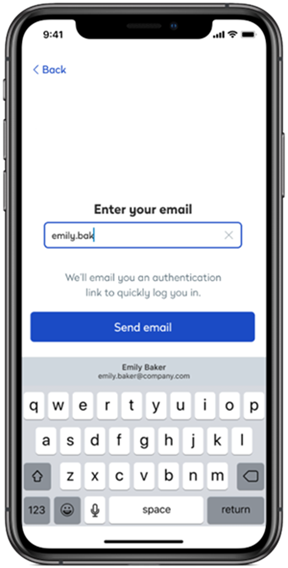
Emails are only sent to email addresses registered with Eptura Engage.
- Tap Open email app to open your mailbox
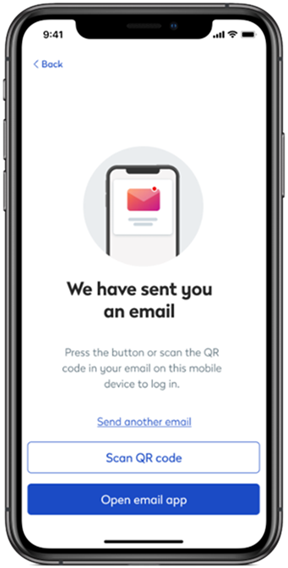
More than one email app on your device? Your device will ask which one to open – choose the app associated with the email address entered earlier.
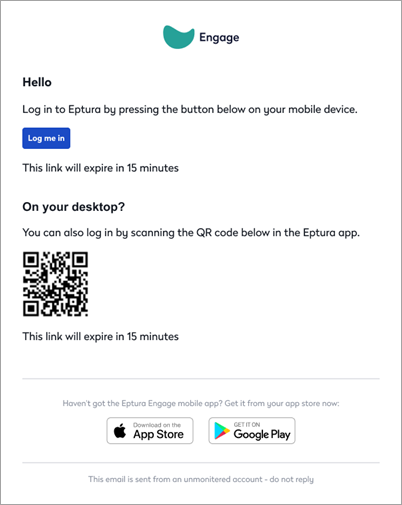
- Find and open the email from Eptura Engage, and tap Log me in. Note that the magic link expires after 15 minutes.

Your email address is then authenticated and the Eptura Engage mobile app launched.
Didn’t receive an email?
a) Check your Junk folder for an email from Eptura Engage.
b) Check the email address you entered is correct – emails are only sent to email addresses registered with Eptura Engage.
How to sign in using the QR code
There are two options when authenticating via the QR code, depending on whether you have access to your business emails from your mobile device or not:
- Upload the QR code from the photo gallery - Use this method when you have access to your business email on your mobile device.
- Scan the QR code displayed on another device - When you do not have access to your business email on your mobile device.
Upload the QR code from the photo gallery
To upload the QR code directly from your device's photo gallery, you must first download it from the email.
- Tap the Eptura Engage icon to start the mobile app.
- Enter your email address and tap Send email.
Emails are only sent to email addresses registered with Eptura Engage.
- Tap Open email app to open your mailbox
More than one email app on your device? Your device will ask which one to open – choose the app associated with the email address entered earlier.
- Find and open the email from Eptura Engage, and download the QR code image to your device. This is normally achieved by tapping and holding the image, and following the steps to save the image.
- On the Eptura Engage mobile app, tap Scan QR code. If this is the first time you are scanning a QR code with the app, you must grant Eptura Engage access to the device camera:
- If prompted, tap OK to allow Eptura Engage access to the device's camera.

- If prompted, tap Open settings and enable camera access for Eptura Engage from your device settings.
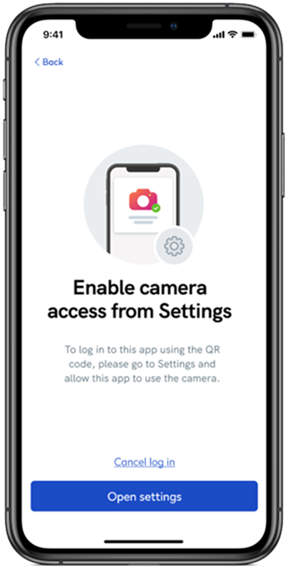
- If prompted, tap OK to allow Eptura Engage access to the device's camera.
- Tap Upload from gallery.
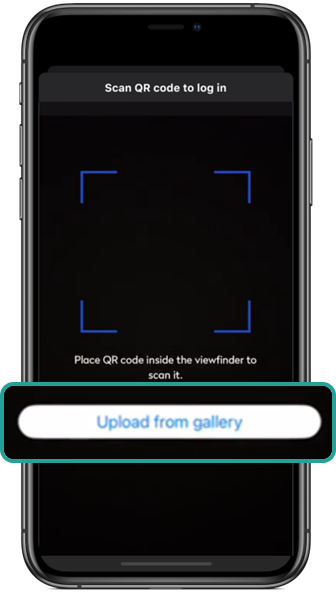
- Navigate to your device's photo gallery and select the QR code image.
Your email address is then authenticated and the Eptura Engage mobile app launched.
Scan the QR code displayed on another device
When you don't have access to your business mailbox from your mobile device, you can view the QR code on a different device - such as a desktop computer - and then scan it from the mobile app when prompted.
- Tap the Eptura Engage icon to start the mobile app.
- Enter your email address and tap Send email.
Emails are only sent to email addresses registered with Eptura Engage.
- Open your mailbox on a desktop or other device and open the email from Eptura Engage. Scroll down to display the QR code. Note, the QR code expires after 15 minutes.
Didn’t receive an email?
- Check your Junk folder for an email from Eptura Engage.
- Check the email address you entered is correct – emails are only sent to email addresses registered with Eptura Engage.
- On the Eptura Engage mobile app, tap Scan QR code. If this is the first time you are scanning a QR code with the app, you must grant Eptura Engage access to the device camera:
- If prompted, tap OK to allow Eptura Engage access to the device camera.
- If prompted, tap Open settings and enable camera access for Eptura Engage from your device settings.
- If prompted, tap OK to allow Eptura Engage access to the device camera.
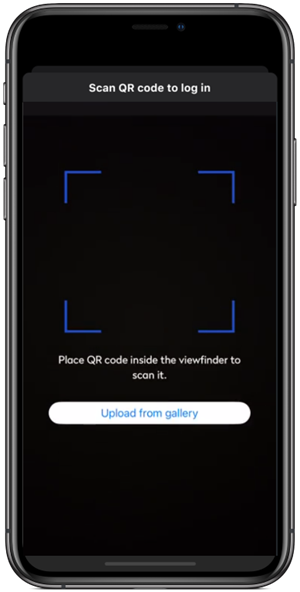
- Hold the device in front of the QR code displayed in the email, ensuring the pattern is inside the viewfinder.
Your email address is then authenticated and the Eptura Engage mobile app launched.