Coming soon!
Booking an Eptura Engage space when creating a visit is expected Q3 2026
If your organization has integrated Eptura Engage with Visitor, you can book a personal and/or meeting space for your visitor while creating the visit.
The following Eptura Engage space types can be booked through Eptura Visitor:
- An Eptura Engage personal space - any workspace used by just one person - a desk or an office, for example.
- An Eptura Engage meeting space - a place where you collaborate with colleagues, such as a meeting room or social area.
The names of the space types might be customized in your organization. For example:
- A personal space might be described as a 'desk' in Eptura Visitor.
- A meeting space might be described as a 'room' in Eptura Visitor.
Booking a personal space
Currently, the integration supports one-way synchronization only for personal space bookings - from Eptura Visitor to Eptura Engage. If a personal space booking was created through Eptura Visitor, any updates must also be made in Eptura Visitor. Changes made directly in Eptura Engage are not synchronized back to the associated visit and may result in inconsistencies.
To add a personal space to a visit, create a new visit and enter the visitor's name and visit details as usual. If the integration is enabled, an option to Book a Desk space is shown.

- Click Book a Desk space to view the Link to a personal space options.
- Select the Location from the drop-down, then wait a few moments for the resource groups to propagate.
- Select the Group from the drop-down, then wait a few moments for the list of available spaces to show.

- Click Book to add a space to the visit - the space is not booked in Eptura Engage until the visit is saved.
- The selected space is added to the visit (but not booked yet). If you want to remove the space, click the red button to the right of the space.

- Click Create visit to save the visit and book the space.
- The visit is confirmed, and the space is booked in Eptura Engage.

The visit shows the booked space in the visit details.

Visit saved, but the space could not be booked
If, for any reason, the space cannot be booked when the visit is saved - perhaps it was booked by someone else before the visit was saved - the visit is saved, but the space is not added. The message 'Visit saved, but the desk could not be booked (it may already be booked).' is displayed.

Edit the visit to choose and add a different space.
Editing a booking added to a visit
You can change a booked personal space to a different personal space or delete the booking entirely when editing a visit.
- From the Visitor logbook, click the visit to view the visit details in the side panel.
- Click Edit to open the visit form.
- The existing booked personal space is shown under 'Desk Space'.
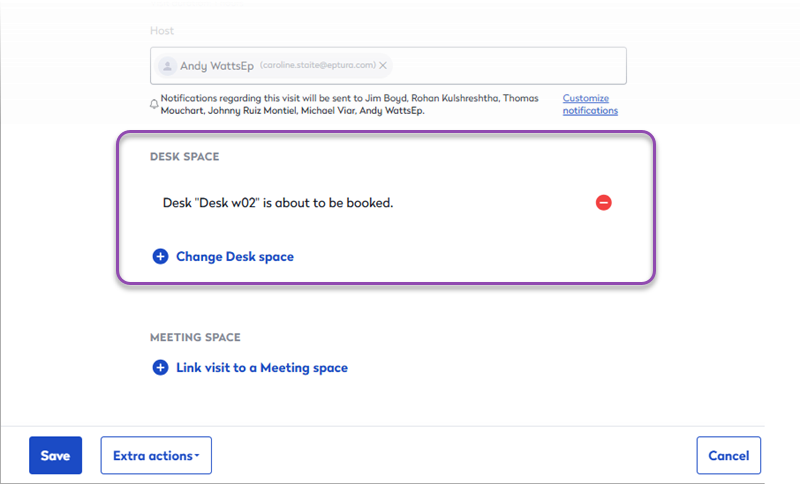
- To delete the booking, click the red button to the right of the space. When the visit is saved, the space is removed from the visit, and the booking is deleted from Eptura Engage.
- To swap the space for another, click Change Desk space to open the Link to a personal space options and select a different space. When the visit is saved, the personal space booking is swapped in Eptura Engage.
Booking a meeting space
When creating a visit, you can link to an existing meeting space booking or create a new booking.
Link to an existing meeting space booking
To link an existing meeting space booking to a visit, create a new visit and enter the visitor's name and visit details as usual. If the integration is enabled, an option to Link visit to a Meeting space is shown.

- Click Link visit to a Meeting space to open the pop-up.
- The host's Eptura Engage meeting space bookings for the visit date are displayed.

- Click Link to add a meeting to the visit - the meeting space booking is not linked until the visit is saved.
- The selected meeting is added to the visit (but not linked yet). If needed, you can click the red bin icon to remove it from the visit.

- Click Create visit to save the visit and link it to the meeting space booking.
The meeting is linked to the visit, and the visitor is added as an attendee of the meeting space booking in Eptura Engage.
The visit shows the meeting in the visit details:
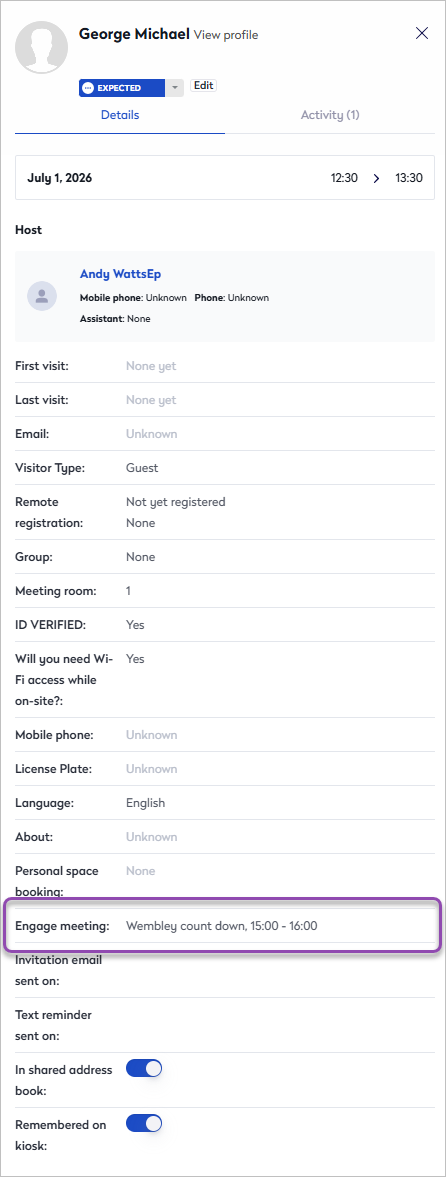
The external guest is added to the attendee list for the Eptura Engage meeting space booking:

Create a new meeting space booking
To add a meeting space to a visit and create a new meeting space booking in Eptura Engage, create a new visit and enter the visitor's name and visit details as usual. If the integration is enabled, an option to Link visit to a Meeting space is shown.
- Click Link visit to a Meeting space to open the pop-up and set your meeting requirements.
- Click the Book a meeting space button to expand the options.
- Location: Select the Location from the drop-down, then wait a few moments for the meeting room list to propagate.

- Meeting room: Click Select to see the list of available meeting spaces. Select the required Meeting space from the drop-down.
- Meeting title (optional): Enter a title for the meeting. If no title is entered, 'Visitor Meeting' is saved as the title in the Eptura Engage booking.
- Click Use this booking to add the meeting to the visit - the booking is not created in Eptura Engage until the visit is saved.
- The meeting is added to the visit (but not booked yet). If needed, you can click the red bin icon to remove it from the visit.
- Click Create visit to save the visit and create the meeting space booking in Eptura Engage.
Eptura Engage creates the meeting space booking with the visit creator as the host and adds the visitor as an external guest to the attendee list.
The visit shows the meeting in the visit details.
Good to know
Expected behaviors, requirements, and limitations when booking Eptura Engage personal and meeting space resources via Eptura Visitor.
Requirements
- The email address of the Visitor user creating the visit must exactly match the email address in their Eptura Engage user account.
- The Eptura Engage user must have the required booking access and available booking allowance to book the added space.
Limitations
- Currently, only one-way synchronization is supported for personal space bookings - from Visitor to Engage. Changes made to personal space bookings from Eptura Engage are not reflected in the associated visit.
- It is not possible to add Eptura Engage 'hourly' personal spaces to a visit. Resource groups might appear, but no spaces are shown.
- Personal spaces added to a visit are booked as whole-day bookings in Eptura Engage, regardless of the visit duration. This behavior applies even when half-day (AM/PM) booking is enabled globally.
- Currently, the integration does not support bookings in Eptura Engage managed meeting spaces that require approval before a booking is confirmed. Attendees added to a managed booking might cause duplicate attendees and duplicate emails in Eptura Visitor. Learn more: Eptura Engage managed meeting spaces ↗️
- Adding spaces to recurring visits is not currently supported. If a visit with an existing assigned space is changed to a recurring booking, the space booking is deleted.
- Adding spaces to group visits is not currently supported.
Behaviors
From Visitor to Engage
- Space bookings made via Visitor appear immediately in Eptura Engage.
- Spaces added to a visit are booked in Eptura Engage under the account that matches the email address of the Visitor user who created the visit. The booking shows the visitor’s name and appears as an external guest of that Engage user. For meeting space bookings, the visitor is added to the attendee list.
- If multiple users in Eptura Engage share the same email address, the booking is applied to only one of those users.
Booking timing
- The space added to the visit is only booked in Eptura Engage when the visit is saved - it is not 'reserved' during creation.
What happens?
If someone else books the space before saving, when the visit is saved, a message indicating the booking failed is displayed in Eptura Visitor, and the space is not booked in Eptura Engage.
How bookings appear
Personal spaces:
- A personal space booking created via Visitor appears in purple on the user’s booking grid, indicating an external guest, and displays the visitor's name. Learn more: Eptura Engage - Personal spaces booking grid ℹ️
- Eptura Engage admins can identify bookings created via Eptura Visitor by using the Booking Source field in the Desks Allocated to People report. Learn more: Eptura Engage - Reports module
Meeting spaces:
- By default, the host for a meeting space booking created via Visitor is the user who created the visit.
- The visitor is added to the attendee list as an external guest in the Eptura Engage meeting space booking.
- If no title is entered for the meeting from the visit, 'Visitor Meeting' is saved as the title of the meeting space booking in Eptura Engage.
Booking limits
- The number of personal space bookings a user can make might be limited by the maximum number of booking slots set in the Eptura Engage resource group or the user's profile settings. Learn more: Eptura Engage - Booking allowances ℹ️
What happens?
If exceeded, when the visit is saved, a message indicating the booking failed is displayed in Eptura Visitor, and the space is not booked in Eptura Engage.
The 'slots per week' setting in the user profile is not visible to users. Admins can manage this setting from User Management. Learn more: Eptura Engage - User management ℹ️
Check-in requirements
- Depending on the Eptura Engage resource group settings, the booking might need to be checked in within the defined period. This can be done by the user who created the visit and booking, or by an Eptura Engage administrator.
What happens?
If a booking is not checked in on time, it might be bumped, and the space made available for others to book.
Deleted or bumped bookings in Eptura Engage
- If a personal space booking is deleted or bumped in Eptura Engage, the booking is removed in Eptura Engage only - the space is not removed from the visit in Eptura Visitor. The space can be manually removed from the visit if required.
Deleting a personal space from a visit
- If a personal space is deleted from a visit, the booking is also removed from Eptura Engage.
Deleting a visit
Personal spaces:
- If a visit with a personal space booking is canceled, the associated booking is removed from Eptura Engage.
Meeting spaces:
- If a visit with a meeting space booking is canceled and the visitor is the only attendee, the meeting space booking is removed from Eptura Engage.
- If a visit with a meeting space booking is canceled and the visitor is one of multiple attendees, the visitor is removed from the attendee list in Eptura Engage. The meeting space booking remains in place and is not canceled.
|
