Deliveries
About the Deliveries dashboard
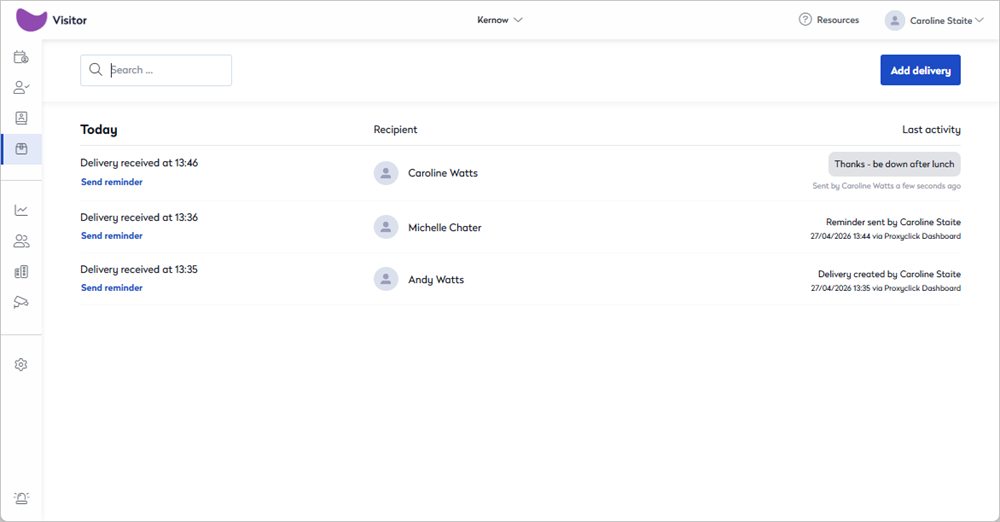
The Deliveries dashboard shows information about deliveries received and who they are for.
The Deliveries dashboard is enabled from Settings > Deliveries. Learn more: Set up Deliveries.
To view the Deliveries dashboard, sign in to the Visitor web app and click Deliveries from the icon menu on the left.

The following actions can be performed from the Deliveries dashboard:
- See a list of all past and present deliveries.
- Search for a recipient.
- Add a new delivery.
- Send reminders to recipients about deliveries that have not yet been collected.
- Check for recipient replies.
Add a Delivery
- To add a new delivery, click the Add Delivery button at the top right to open the 'Add deliveries' window.

- Recipient: Enter the name of the person that the delivery is for.
- Leave a note (optional): Enter a note for the recipient if required. The note is added to the email notification sent to the recipient.
- To send the notification, click Send, or if you want to create another new delivery, click Send and continue.
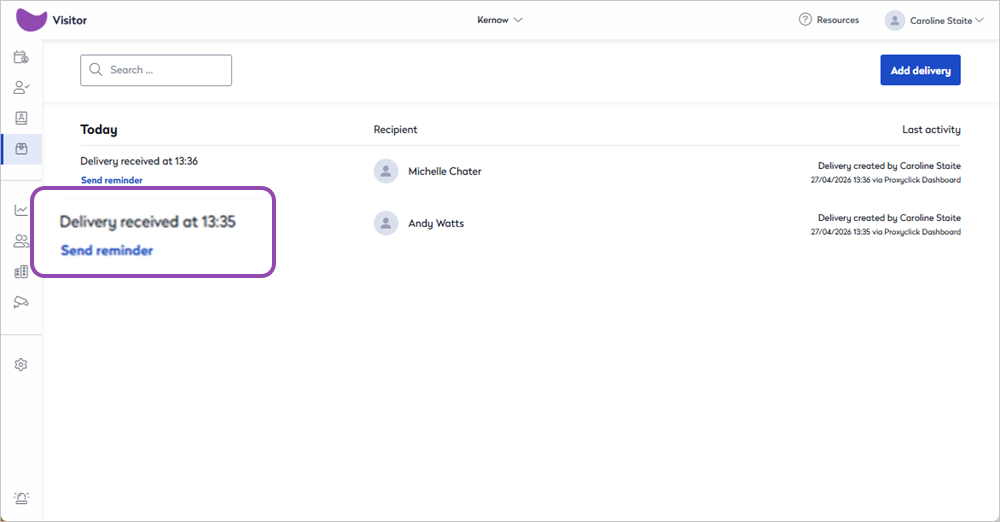
Send Reminder
If the delivery hasn't been collected, click Send reminder to send an email notification to the recipient.
Delete Delivery
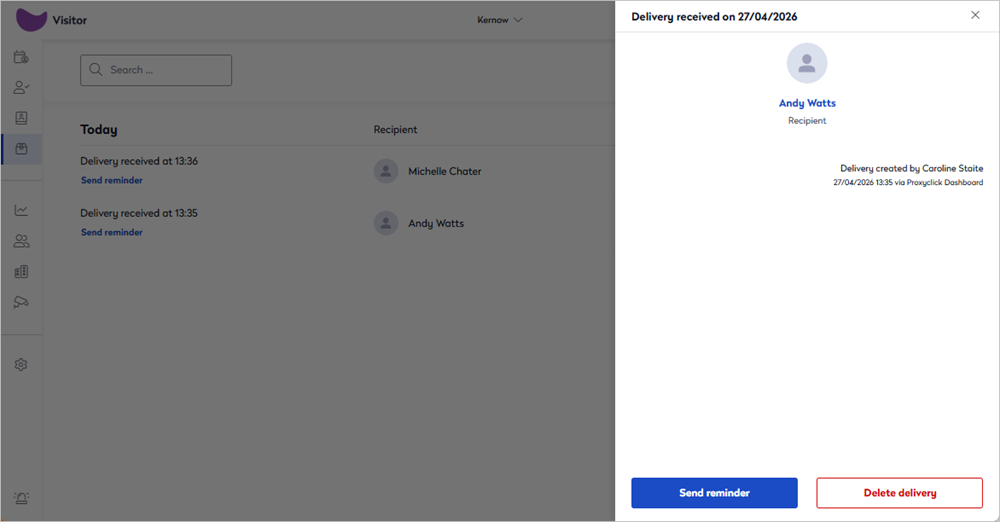
To delete a delivery, click the delivery in the list to open the delivery panel on the right. From here, you can send the recipient a reminder about an uncollected delivery or click Delete delivery to remove it from the list.
Recipient's notification email
When a new delivery is created, an email notification is sent to the recipient to let them know their delivery has arrived and is awaiting collection.
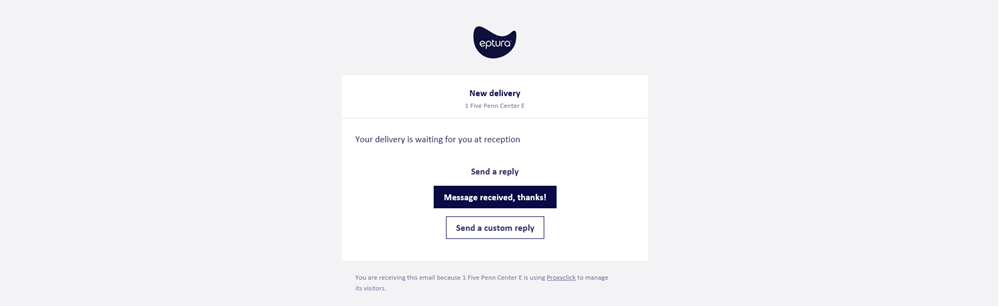
The email notification contains the following options to send a reply to the front-of-house team:
- Message received, thanks!: Reply with the default message to acknowledge the notification.
- Send a custom reply: Opens a message box where you can enter your own reply. Click Send message when done.
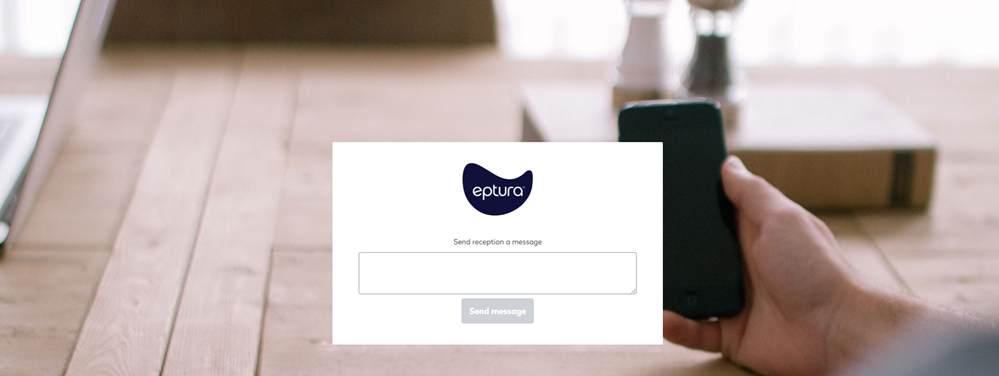
Replies are shown in the Last activity column on the Deliveries dashboard.