
Deliveries
Enable deliveries
Deliveries can be managed from the Deliveries dashboard, and a Delivery option can be added to the kiosk so the courier can check in the delivery directly.
Did you know? If you have more than one delivery point, you can define different entrances. These entrances are displayed on the Visitor logbook and noted in the email notification sent to the recipient, so they know where to pick up the delivery. Learn more: Manage notifications at a multi-entrance location
Follow the steps to enable deliveries for your location.
- Navigate to Settings > Deliveries.

If settings are locked (grayed out) and cannot be edited
When settings have been previously saved via the Global Admin Dashboard, they might be locked at the local level.
In this case, none of the multi-location settings are configurable locally from the Settings module. The options are locked, and a message is displayed - 'Please contact a Global Admin to alter this setting'.
Learn more: Global Admin Dashboard
- Deliveries on the Eptura Visitor Kiosk app: Enable this option to display the Delivery button on the kiosk.
When enabled, the courier can tap the Delivery button on the kiosk and enter the recipient's details in the Who is this package for? screen, or tap I don't know if the recipient is unknown or not found. An email notification is sent to the recipient (or the default recipient if the name is unknown) advising where the package can be collected.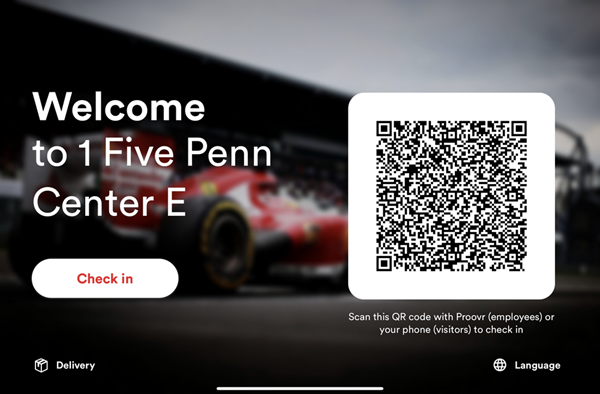
The Delivery button is displayed at the bottom left of the kiosk
The default recipient is configured in Settings > Configure Kiosk > Host identification > Default recipient.
- Deliveries on the Dashboard: Enable this option to add the Deliveries dashboard to the icon menu on the left-hand side of Eptura Visitor.

Learn more: Deliveries
Copy settings to all locations
If you want to apply the settings to all the locations you are an administrator of, click Copy to all locations to the right of the 'Save changes' button.

A list of locations you administer is displayed. Click Save to apply the settings to all listed locations.
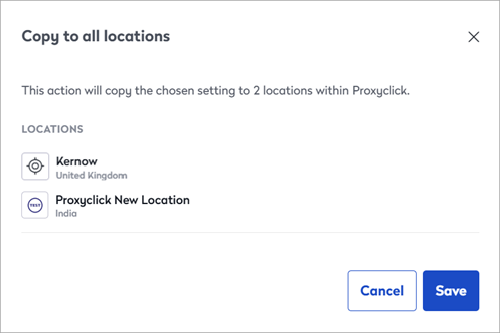
From the Global Admin Dashboard, Global administrators can manage this setting and other settings globally for multiple locations. Learn more: Global Admin Dashboard