
Global Admin Dashboard
Contents
- About the Global Admin Dashboard
- Launching the Global Admin Dashboard
- Grouping locations
- Multi-site settings
- Templates and Custom fields
- Duplicating templates
- Audit log
- Company reference
- Custom domain for visitor notifications
Additional options for Eptura platform services
About the Global Admin Dashboard
The Global Admin Dashboard provides Global administrators a centralized interface to manage settings across multiple locations, with granular control over different regions or territories.
This dashboard offers the following benefits:
- Centralized management: Global administrators can manage settings from a single, unified dashboard, providing detailed control over various regions.
- Efficiency: Settings can be applied to all locations simultaneously, streamlining the update process and saving time.
- Customization: Supports configuring settings specific to different regions.
- Security: Settings are locked at the local level when applied via the Global Admin Dashboard, ensuring global settings remain consistent and secure.
- Custom domain for visitor notifications: Administrators can define the domain from which visitor email notifications are sent, ensuring visitors receive emails from a recognizable, trusted domain.
- Audit log: The Audit Log shows when and where multi-site settings were applied using the Global Admin Dashboard, and who performed the change.
The Global Admin Dashboard is available for certain Eptura Visitor plans. Contact Eptura to find out more.
Prerequisites
Organization view - The Global Admin Dashboard requires Eptura Visitor locations and buildings to be managed in an Organization view. Existing customers can contact Eptura to configure the Organization view. From the June 2025 release, an Organization view is configured by default for new Eptura Visitor customers.
When the view is configured, an 'ORGANIZATIONS' section is displayed at the top of the Locations list.
Launching the Global Admin Dashboard
The Global Admin Dashboard is launched from the location drop-down at the top of Eptura Visitor on the web. Click the location drop-down and select your Organization from the top of the list to open the Global Admin Dashboard.

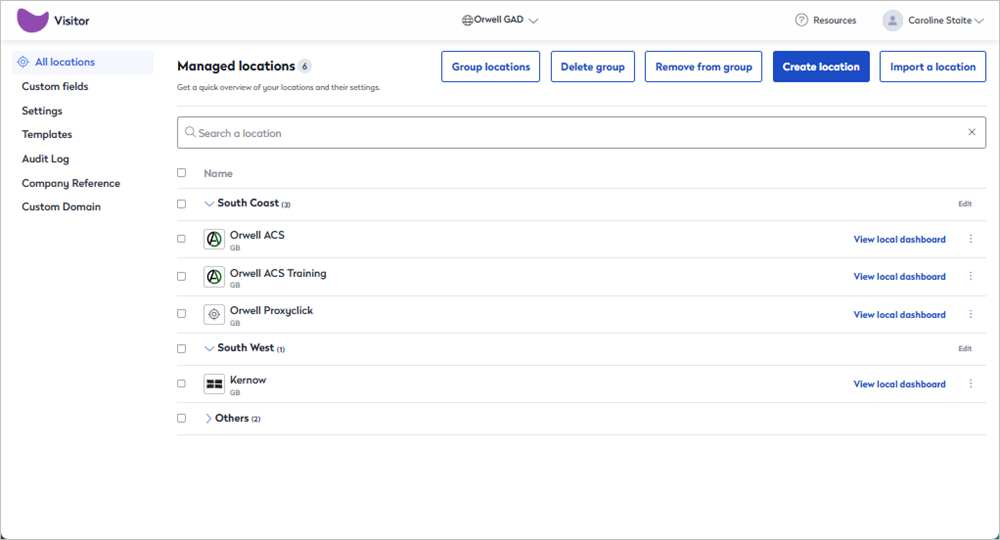
When the Global Admin Dashboard is launched, the All locations view opens, displaying your managed locations in a list. Each location includes a link on the right that opens the local dashboard in a new browser tab, showing the location's Visitor logbook.
From All locations, you can group locations to make it easier to manage and apply settings across multiple locations.
Grouping locations
When you have multiple locations, it can be useful to group them into categories - geographically, for example. Settings can be applied to all locations in a group, making it easier to manage settings across multiple locations.
Locations are grouped via All locations on the Global Admin Dashboard.
- Select your Organization from the top of the location drop-down list to launch the Global Admin Dashboard. All your managed locations are displayed in the All locations view.
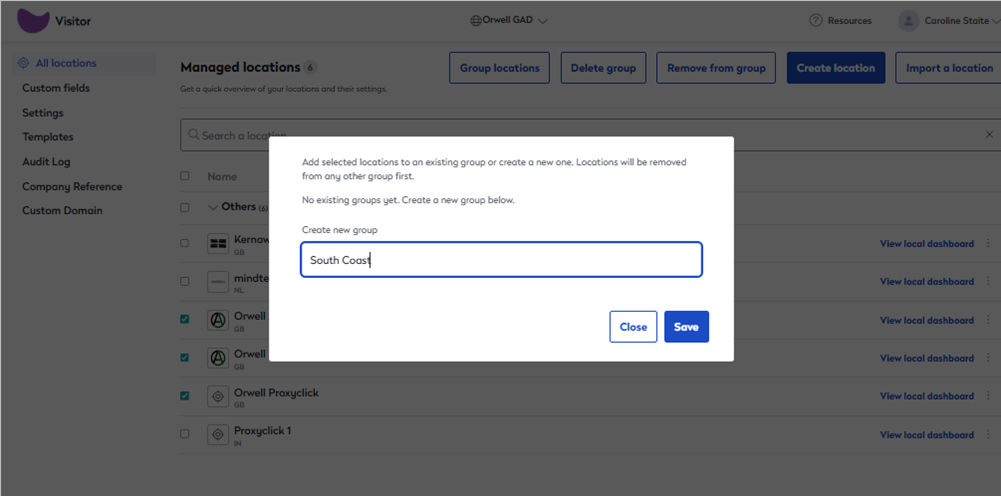
- Select the locations to group and click the Group locations button.

- Enter a name for the group and click Save.
- Selected locations are now listed in the group. Groups can be expanded and collapsed by clicking the up/down arrow next to the group name.
Editing groups
Locations can be easily moved between groups or removed from a group. Groups can be deleted without affecting the grouped locations - when a group is deleted or a location is removed from a group, they are displayed in the Others category. Groups can also be renamed.
Click to expand the sections and see how to perform the actions:
Move a location to a different group
Move a location to a different group
- Select the location(s) to move, then click Group locations.
- Select an existing group to move the location to, or enter a name to create a new group.

- Click Save to move the location.
Remove a location from a group
Remove a location from a group
- Select the location(s) to remove from a group. A message confirms the location that will be removed, and the locations that will remain in the group.

- Click Remove from group.
Rename a group
Rename a group
- Click Edit to the right of the group to rename.

- Enter a new name and click Save.
Delete a group
Delete a group
- Select any of the locations in the group to delete, or select the group.
- Click Delete group then select the group to delete from the pop-up message.
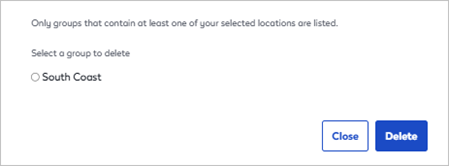
- Click Delete to delete the group and return the grouped locations to the Others category.
Multi-site settings
About multi-site settings
Certain settings can be applied across multiple locations or groups simultaneously from the Global Admin Dashboard. Any setting that includes the ‘Copy to all locations’ option in a location’s Settings module can be selected in bulk from the Global Admin Dashboard and applied to the specific locations you choose.
These settings include:
- Kiosk layout ℹ️
- Kiosk customization
- Other screens
- Logbook settings ℹ️
- Visit creation settings
- Automatic check-out
- On-site status
- Customize badges ℹ️
- Badge design
- Deliveries ℹ️
- Deliveries on the iPad app
- Deliveries on the Dashboard
- Privacy ℹ️
- Visit retention period / Visitor profiles retention period
- Mask contact information
- Display globally recognized avatars
Settings not displayed on the Global Admin Dashboard? Settings only appear in the Global Admin Dashboard settings, after a 'Copy to all locations' action has been performed for the setting from at least one location.
Allow or lock settings locally
When settings are copied to multiple locations, they are locked by default at the local level, preventing local administrators from modifying them at the individual location level. However, from the Global Admin Dashboard, you can unlock the settings and allow them to be configured locally if required. The Allow local overrides option is displayed when you confirm the locations to copy the settings to, from the Global Admin Dashboard.

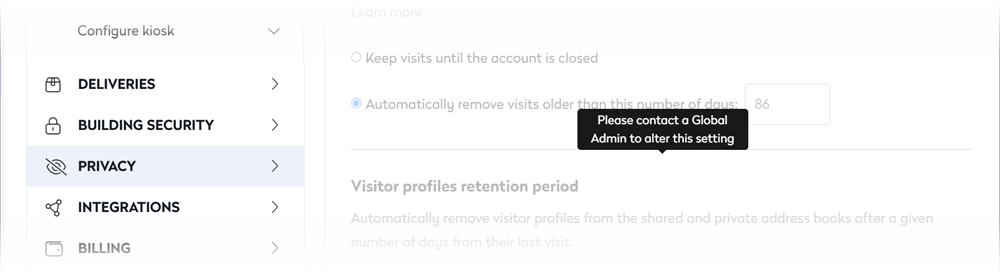
When settings are locked locally, they appear grayed out for location, and the message 'Please contact a Global Admin to alter this setting' is displayed.
How to apply multi-site settings
To apply settings to multiple locations from the Global Admin Dashboard, first, select the locations or (groups of locations) that you want to receive the settings, then edit the settings as required and save them - this saves all the listed settings (not just the settings that you edited) to the selected locations.
When settings are applied to selected locations via the Global Admin Dashboard, all the listed settings are applied - not just the settings that were changed.
- Select your Organization at the top of the location drop-down list to launch the Global Admin Dashboard and the All locations view, which displays your managed locations.
- From the All locations view, select the locations or groups that you want to apply the settings to. You can click the check box at the top of the list or the group to select multiple locations at once, or select individual locations.

- After selecting the locations to apply the settings to, select Settings from the menu on the left of the Global Admin Dashboard to view the settings that can be applied to multiple locations. Note - only the settings that have previously had the 'Copy to all locations' action performed from a local location are shown.

- Edit the settings as needed for the selected locations, then click the Save changes button at the top when done.
- A confirmation message is displayed, listing the locations to which the settings will be applied. Check the locations, and if you want to allow editing the settings locally, select Allow local overrides. Click Save to confirm the changes.

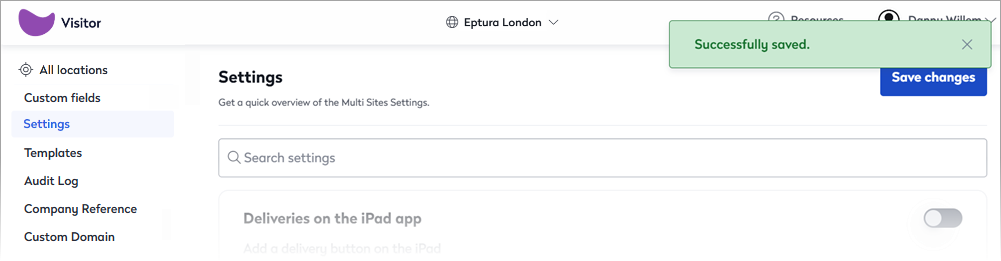
- A message confirming the changes have been successfully applied is displayed at the top right of the screen.
Templates and Custom fields
Check-in and Remote registration journeys, as well as custom fields, can be centrally managed from the Global Admin Dashboard. Create templates for the journeys and save them to your selected locations.
When the check-in and/or remote registration templates are saved to a location from the Global Admin Dashboard, those journeys are locked at the local level, preventing local administrators from modifying them for individual locations. However, from the Global Admin Dashboard, you can unlock the templates so they can be configured locally if required. The Allow local overrides option is displayed when you confirm the locations to copy the templates to from the Global Admin Dashboard.

The check-in and remote registration templates use custom fields created directly from the Global Admin Dashboard. These custom fields are viewable from your locations but cannot be edited locally.
Create custom fields
By default, each location can have up to 10 custom fields. While the Global Admin Dashboard allows unlimited custom fields, only 10 can be applied to a location. If more than 10 custom fields are included in check-in or remote registration journeys, they cannot be saved to locations that have this limit.
To request additional custom fields for your location(s), Contact Support.
Create the custom fields to use for your centrally managed check-in and remote registration templates.
Custom fields created in the Global Admin Dashboard and added to a template can be viewed in the location(s) the template is assigned to, but cannot be edited locally.
- Select your Organization from the top of the location drop-down to open the Global Admin Dashboard.
- Select Custom fields from the menu.
- Click the New custom field button on the right.

- Now create the custom fields to use in your centrally managed check-in and remote registration templates. These custom fields are created in the same way as location-specific custom fields. Learn more: Create Custom Fields, Custom Screens and Smart Rules
Create templates and apply them to selected locations
Create the centrally managed templates for your check-in and remote registration journeys.
When the check-in and remote registration templates are saved to your locations from the Global Admin Dashboard, those journeys cannot be edited locally.
- Select your Organization at the top of the location drop-down list to launch the Global Admin Dashboard and the All locations view, which displays your managed locations.
- From the All locations view, select the locations that you want to apply the template(s) to. You can click the check box at the top of the list or the group to select multiple locations at once, or select individual locations.
- Select Templates from the menu and choose the type of template to create settings for; either for the Check-in or Remote registration journey.

- Configure the settings for the template type:
|
Check-in settings
|
Remote registration settings
|
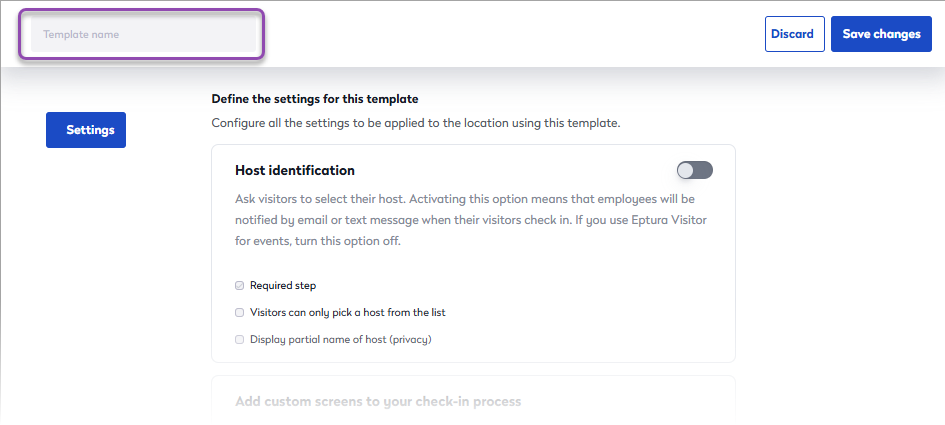
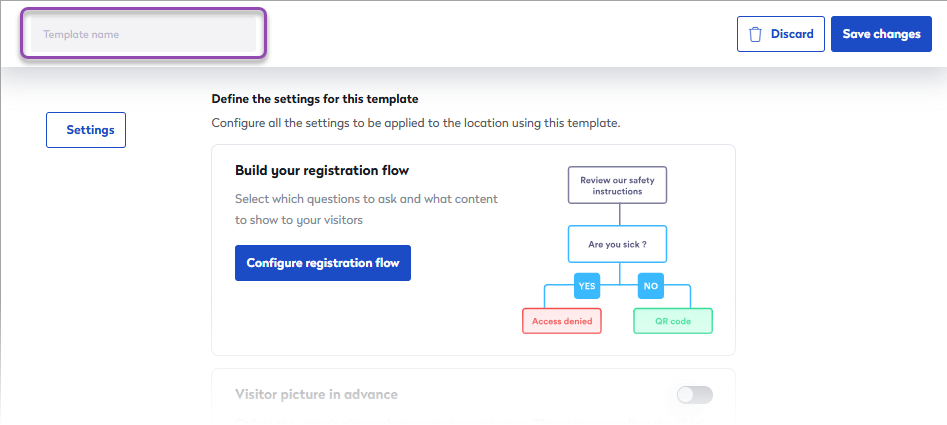
- Select the templates to save to the locations you selected earlier. You can select only one template of each type (1 check-in and 1 remote registration), then click Save changes.
- A confirmation message is displayed, listing the locations where the templates will be applied. Check the locations, and if you want to allow the templates to be edited locally, select Allow local overrides. Click Save to confirm the changes.
Duplicating templates
When you want to create a new check-in or remote registration template, you can duplicate an existing one from the Global Admin Dashboard. The duplicated template can be edited accordingly and saved with a new name. The new template can then be saved to the selected locations.
- Select your Organization at the top of the location drop-down list to launch the Global Admin Dashboard, then select Templates.
- Click the More actions icon (three-dots) to the right of the template and click Duplicate.
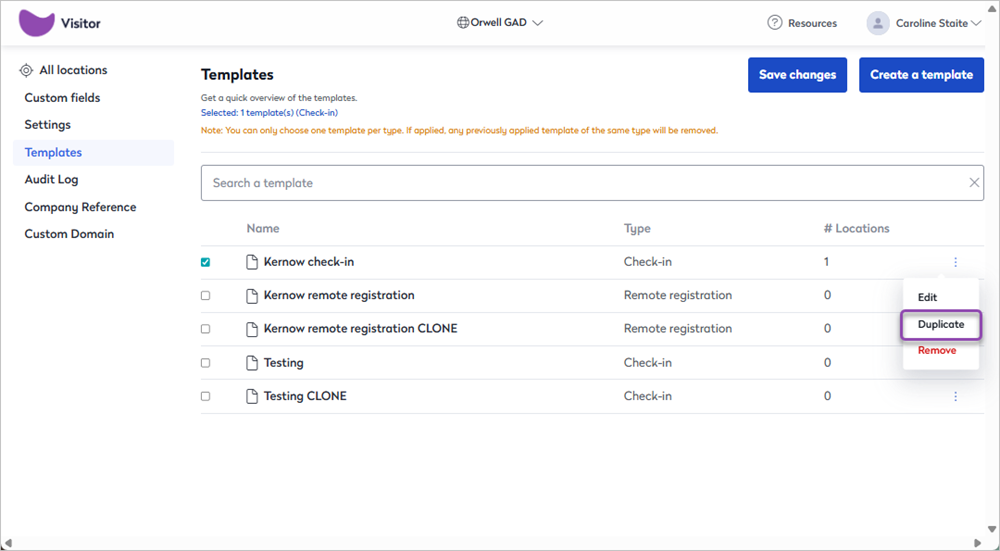
- The duplicated template appears in the list with 'CLONE' appended to the end of the template name.
- Click the template to edit. From here, you can rename it by editing the name at the top.

Duplicated templates are not connected to any location.
Audit Log
The Audit Log shows when and where multi-site settings were applied using the Global Admin Dashboard, and who performed the change.
To view the Audit Log, select your Organization from the top of the location drop-down list to open the Global Admin Dashboard.
No Organization displayed? Contact Eptura to configure an Organization for your Eptura Visitor implementation.
- Select Audit log from the menu to view the log.
- Search - Enter a date, time, or administrator name to find a specific activity log.
- Click View More to open the activity log and view details of the changes.
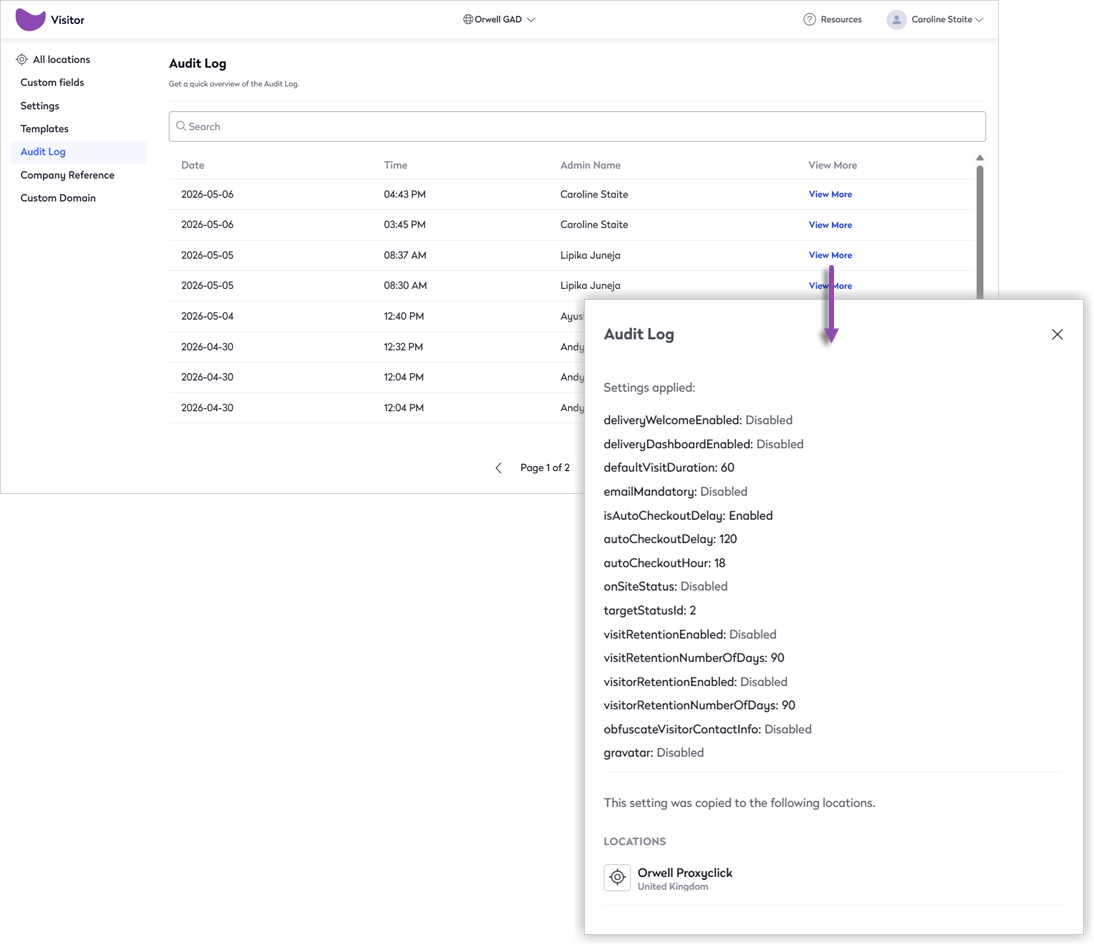
The activity log lists the settings that were changed and their new values. Where relevant, the location(s) that the settings were copied to are shown under Locations at the bottom. Locations are not listed when a setting affects all locations - such as editing a custom field or updating the custom domain, etc.
Company Reference
This Company Reference value is for your own purposes and can be useful for reporting or integrations with third-party applications. It is not visible to users. Learn more: Company settings
You can quickly view or edit Company Reference values for each of your locations from the Global Admin Dashboard.
To view the Company Reference values, select your Organization from the top of the location drop-down list to open the Global Admin Dashboard.
No Organization displayed? Contact Eptura to configure an Organization for your Eptura Visitor implementation.
- Select Company Reference from the menu to view and edit the values.

- Edit the values as required and click Save to apply the Company Reference to the location.
Custom domain for visitor notifications
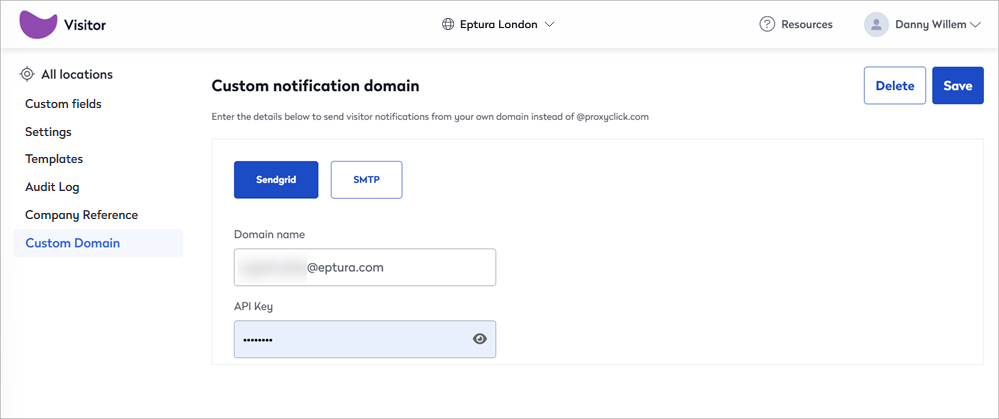
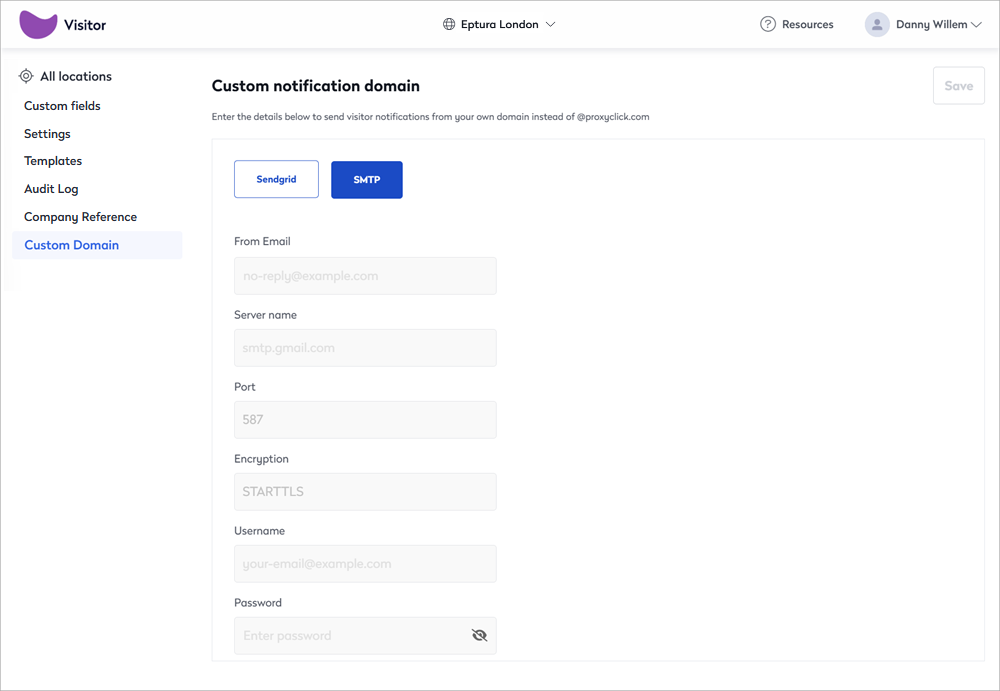
Administrators can define the domain from which visitor email notifications are sent, ensuring visitors receive emails from a recognizable and trusted domain. The domain can be set by entering either your SendGrid account credentials or SMTP details.
To set the sending domain, select your Organization from the top of the location drop-down list to open the Global Admin Dashboard.
No Organization displayed? Contact Eptura to configure an Organization for your Eptura Visitor implementation.
- Select Custom Domain from the menu on the left and enter your SendGrid or SMTP details where indicated.
- SendGrid: Enter your SendGrid email address and API key, and click Save. This is the email address that notifications will be sent from. Learn more: SendGrid domain authentication
- SMTP: Enter your SMTP details, and click Save. See also: SMTP configuration notes
- SendGrid: Enter your SendGrid email address and API key, and click Save. This is the email address that notifications will be sent from. Learn more: SendGrid domain authentication
If nothing is entered for SendGrid or SMTP, or the connection fails, emails are sent from '@proxyclick.com'.
SendGrid domain authentication
The following steps assume an understanding of SendGrid and DNS, and might differ depending on your environment.
- Sign in to your SendGrid account.
- From the left menu, navigate to Settings > Sender Authentication.
- Under 'Domain Authentication', click Get Started.
- Enter your custom sub-domain (e.g. mail.example.com) and choose your DNS host.
- Enable Automated Security to generate DKIM and SPF records.
- Click Next to view the CNAME records and the SPF TXT entry.
- Copy each record exactly as shown in SendGrid.
- Sign in to your DNS provider and create the CNAME and TXT records.
- Wait 5–30 minutes for DNS changes to propagate.
- Return to SendGrid and click Verify. Status will change to Verified.
SMTP configuration notes
- No additional setup is required for DomainKeys Identified Mail (DKIM) when using your SMTP server.
- Ensure your SMTP server is configured to sign outgoing emails as needed.
- Verify that your SMTP host IP addresses are authorized in your Sender Policy Framework (SPF) policy.
User Assignment for Eptura platform services
 |
Eptura platform services If your organization uses Eptura's platform services, up to 50 users can be assigned or removed from a location in bulk from the User Assignment page in the Global Admin Dashboard. Learn more
|
About the User Assignment page
The Eptura Visitor User Assignment page is available for Eptura platform services and allows up to 50 users to be assigned or removed from a location in bulk.
The User Assignment page is opened from the Global Admin Dashboard menu. Learn more: Global Admin Dashboard

By default, the User Assignment page lists 10 users per page in alphabetical order by the users' first names. The user list can be filtered and navigated as follows:
- Search for user: Enter part of a user's name or email address in the search box on the left. Matching users are displayed automatically as you type.
- Filter by location: Enter a location name in the filter box on the right. The user list is filtered automatically to show matching locations as you type.
- Page navigation: Use the navigation arrows below the user list to move between pages.
- Users per page: Use the drop-down list to the right of the navigation arrows to select how many users to display on each page - up to 50 users per page can be displayed and selected.
Manage location assignments
Platform services customers can assign or remove up to 50 users from a location at the same time from User Assignment in the Global Admin Dashboard.
- Launch Eptura Visitor from Eptura Home. Learn more: Eptura Home ↗️
- Select your Organization from the location drop-down list in Eptura Visitor to open the Global Admin Dashboard.
- Select User Assignment from the Global Admin Dashboard menu.
- Find and select the users as required - up to 50 users can be selected and managed at one time.
- Click Manage assignments.

- Select the location to assign or remove from the list. The list shows up to 10 locations. To find a different location, either enter the location name in the Search locations box or use the navigation arrows under the list to move through pages of locations in alphabetical order.

- Select Assign or Remove as appropriate, or click Close to return to the previous page.
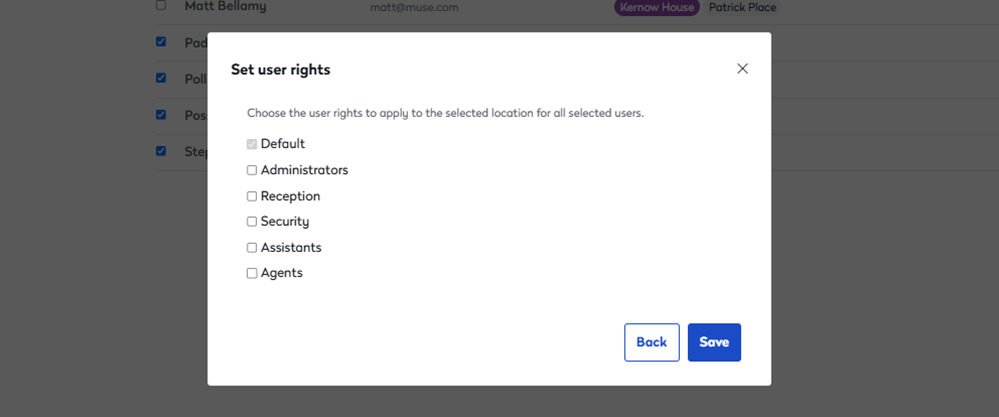
- Click Assign to display the Set user rights options. Select the appropriate user group to apply to the selected location for all selected users, then click Save to assign the location and user group. Learn more: User groups and rights
- Click Remove to remove the selected location from the selected users.
- Click Assign to display the Set user rights options. Select the appropriate user group to apply to the selected location for all selected users, then click Save to assign the location and user group. Learn more: User groups and rights
The changes are immediately applied and visible on the User Assignment page.