
Delete visit and visitor data
Certain data privacy regulations - such as the General Data Protection Regulation (GDPR) and California Consumer Privacy Act (CCPA) - require that visit and visitor details are not stored longer than necessary.
This means that personal data can only be retained for as long as is needed to carry out the activities it facilitates, after which it needs to be deleted.
Eptura Visitor provides many options to help manage data retention - you can configure privacy settings for hosts, visitors, and visits to manage data retention automatically and you can also manually delete data when required.
Where is visit and visitor data stored? Information about visits and the associated visitors' details can be stored in the Visitor logbook and on the kiosk, and visitors' details can also be stored in the Visitor address book.
Deleted data cannot be restored or recovered, and cannot be exported.
Data retention settings
Several settings in Eptura Visitor control if data is retained, and if so, how long it is retained before it is automatically deleted.
- Data Privacy settings: Set visits and visitor retention periods, hide sensitive information displayed on the kiosk, and display globally recognized avatars (gravatars). Learn more: Privacy
- Visitor identification on the kiosk: Choose whether to store visitor details on the kiosk so they’re automatically recognized on future visits. Learn more: Visitor identification
- Visitor agreements: Visitors might be required to sign a digital document - a non-disclosure agreement (NDA) for example. The document is signed electronically by the visitor and is stored with the visit in a PDF file. Learn more: Visitor agreements
Manually delete visit data
Sometimes it might be necessary to manually clear visit and visitor data from the Visitor logbook, the kiosk, and/or the Visitor address book. These processes are explained below.
- Delete visit data from the Visitor logbook
- Delete visitor profiles from the Visitor Address book
- Delete visitor data from the kiosk
Delete visit data from the Visitor logbook
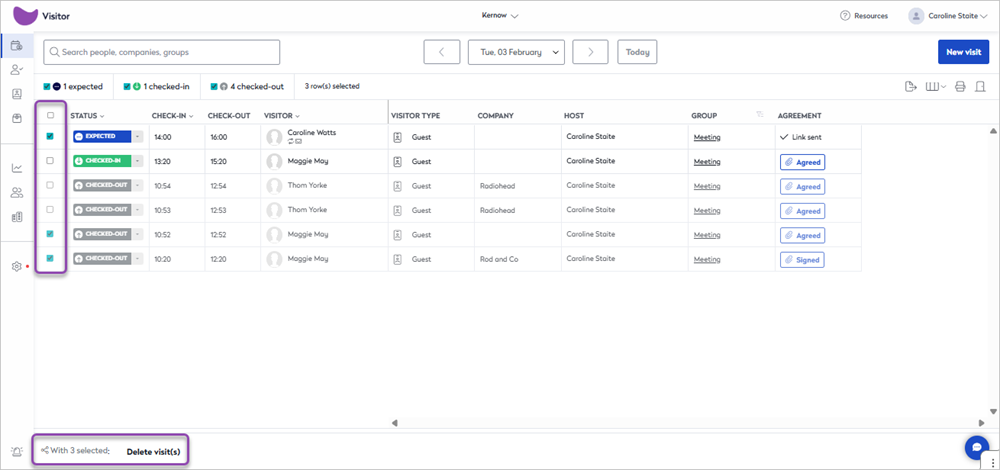
Up to 100 visits can be selected at a time for deletion from the Visitor logbook. When at least one visit is selected, the number selected and an option to delete them is shown under the list. Only users with the required permissions to delete visits will see the 'delete visit(s)' option.
To delete visits, open the Visitor logbook and navigate to the date of the visit(s) to delete. Either select the individual visits to delete or click the box at the top of the list to select all. When the visits are selected, scroll to the bottom of the page and click Delete visit(s).
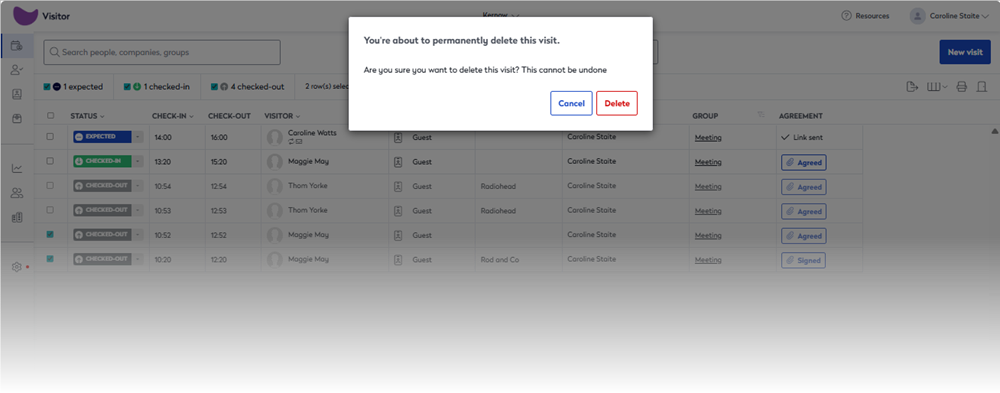
A reminder that deleting visits is permanent and cannot be undone is shown. To confirm the deletion, click Delete.
Delete visitor profiles from the Visitor Address book
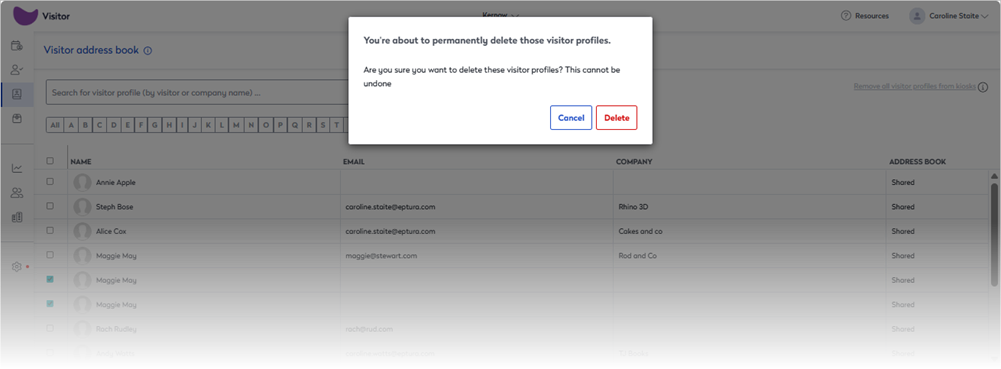
Up to 100 visitor profiles can be selected at a time for deletion from the Visitor Address Book. When at least one visitor profile is selected, the number selected and an option to delete them is shown under the list. Only users with the required permissions to delete visitor profiles will see the 'delete' option
To delete visitor profiles, open the Visitor Address book and either select the individual visitors to delete or click the box at the top of the list to select all. When the visitor profiles are selected, scroll to the bottom and click Delete.

A reminder that deleting visitor profiles is permanent and cannot be undone is shown. To confirm the deletion, click Delete.
Delete individual visitor profiles from the Visitor Address book
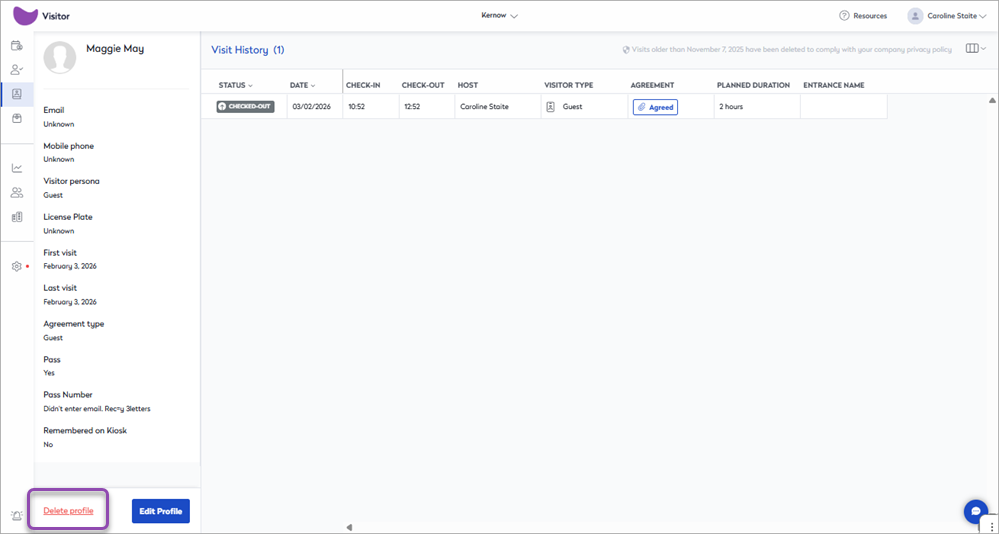
To delete an individual visitor profile, click the visitor's entry in the Visitor Address book to open the visitor's profile in the side panel. Click Delete profile at the bottom.
Delete visitor data from the kiosk
Depending on your settings, the kiosk might store visitor data - this facilitates returning visitors who are not pre-registered. Learn more: Visitor identification
Visitor data stored on the kiosk can be removed via the Visitor Address book.
Open the Visitor Address Book and click the Remove all visitor profiles from kiosks link at the top right.

Click Remove to continue.
Visitor profiles are removed from the kiosk but might still be stored in the Visitor Address book.