
Create visits for someone else
Users with appropriate permissions can create a visit and assign a different colleague as the host.
To create visits for others, a user must be a member of the Assistants user group or another user group that allows visits to be created for others. This allows the user to create a visit and assign a different host.
Your Administrator can add users to the Assistant user group. Learn more (admins): User groups and rights
Assign a different host for a visit
To assign a colleague as the host for a visit, create or edit the visit and change the host name to your colleague's name.
- Open the visit and scroll down to Host. Click the X to remove your name from the host field.
- Start typing your colleague's name and select it when it appears.

- If your colleague does not exist, you can add them:
- Click Add as a new user.

- Enter your colleague's email address and click Next. Then complete the remaining details as required and click Save.
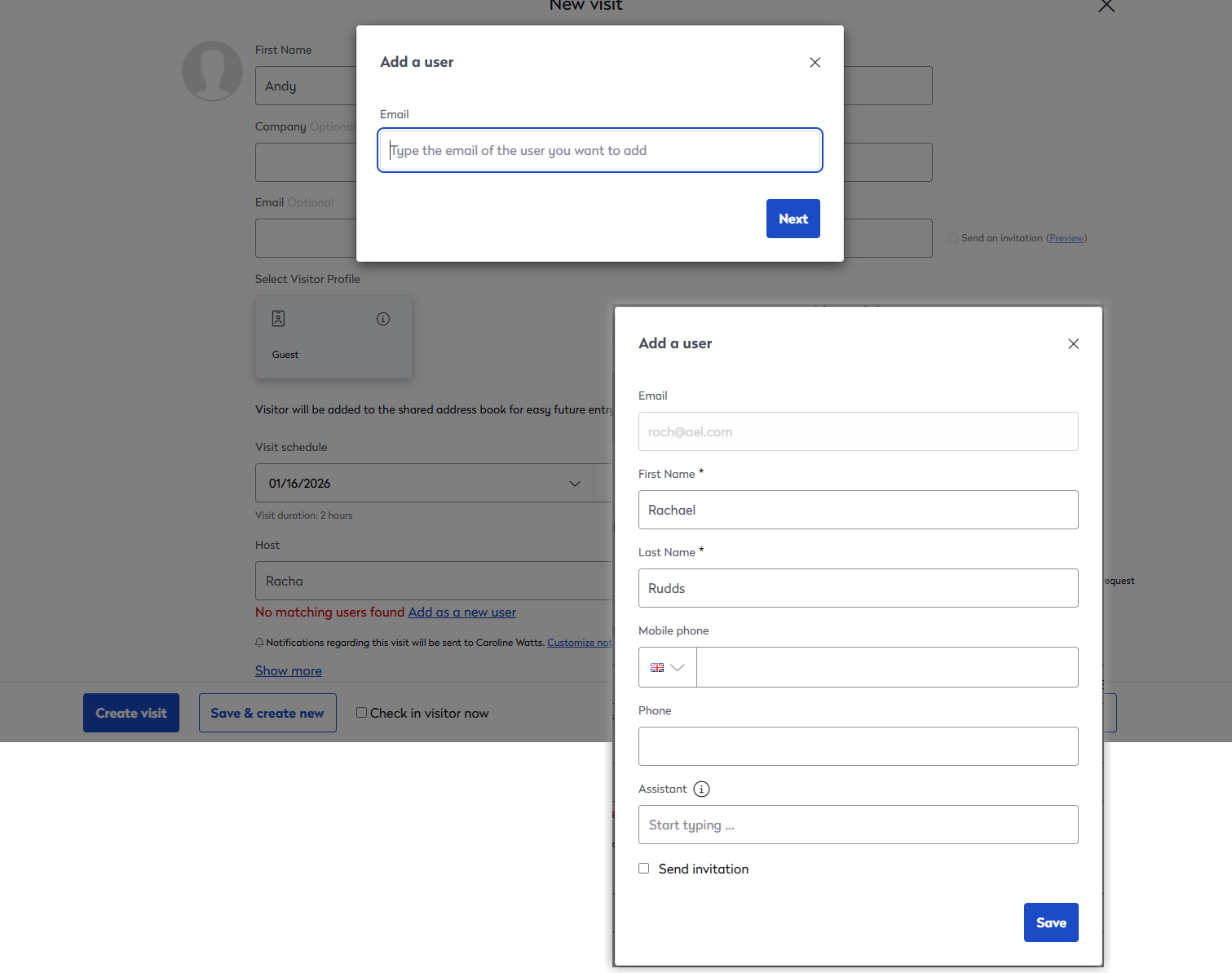
- Click Add as a new user.
Your colleague is now set as the host for the visit.
Good to know
- A visit can only have a single host, but other users can be assigned to receive check-in and check-out notifications if required. Click Customize notifications under the Host field to expand the options and add recipients as appropriate.

- Personal assistants can be assigned to receive notifications about all visits created for a specific host. Learn more: Personal Assistants
- Calendar integrations set the invitation sender as the host: If you are using the generic calendar integration, the invitation sender is set as the host for the visit. The visit can be edited in the Visitor Logbook after the invitation is sent, but the invitation will still show the sender as the host.
- Eptura Visitor Outlook add-in: If you are sending an invitation on behalf of another user using the Eptura Visitor Outlook add-in, you can send the invite through Microsoft Outlook as long as you have access to that user's Outlook calendar.