
Visitor Address Book
About the Visitor Address Book
The Visitor Address Book contains contact and visit information for visitors who have attended or will attend your workplace. Each location has a separate Visitor address book; each address book is available to all users in the location, but is not shared across locations.
In addition to the visitor's contact details, the address book record includes their visit history and any data collected through custom fields during registration.
A visitor's contact and visit details might be added to the address book, or updated when:
- A new visit is created
- A visitor registers and checks in via the Visitor kiosk
- A visitor completes a remote registration
Data privacy and retention - You can set retention periods for storing visit and visitor data, and hide sensitive information displayed on the kiosk. Learn more: Data privacy settings
Open the Visitor Address Book from the icon menu on the left side of the Eptura Visitor web app.

Contents
Search for a visitor
You can search for a specific visitor in the address book by entering their name or company name in the search box, and/or filtering the list by selecting the first letter of their last name (surname) from the alphabet selection boxes underneath.

Note that these search filters work together rather than as an either/or option. If you enter a name or company in the search box and also select a specific letter, only contacts that match both criteria are displayed.
A message is displayed if no visitors matched the selected criteria.
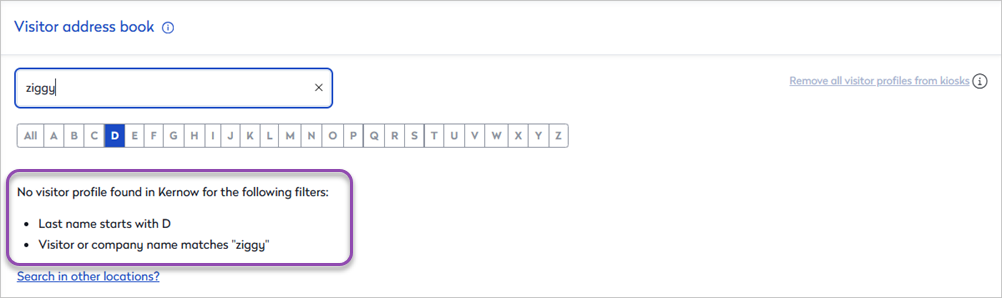
Click a visitor in the address book to view the contact and visit information.
The visitor's contact details and any data collected through custom fields are shown on the left.
The Visit History lists past, present, and future visits for the selected visitor, including the status for each visit - Expected, Checked in, Checked out, etc.

Click to select a visit in the Visit History list and open the visit Details and Activity panel on the right.

Edit or delete a visitor's profile
From the Visitor Address Book, find and select the visitor you want to edit. See above: Search for a visitor
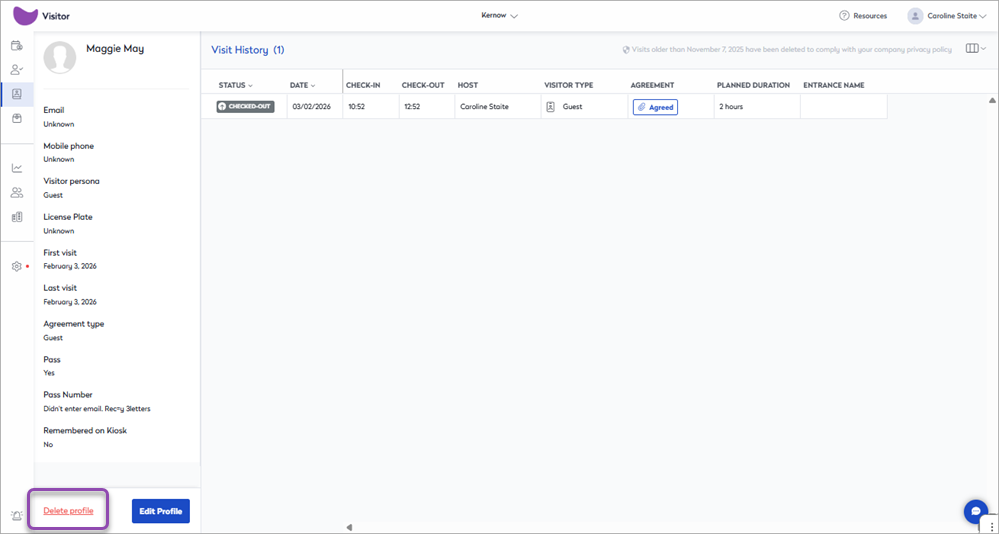
The Visit History opens, where you can either delete or edit the visitor's profile

Delete profile
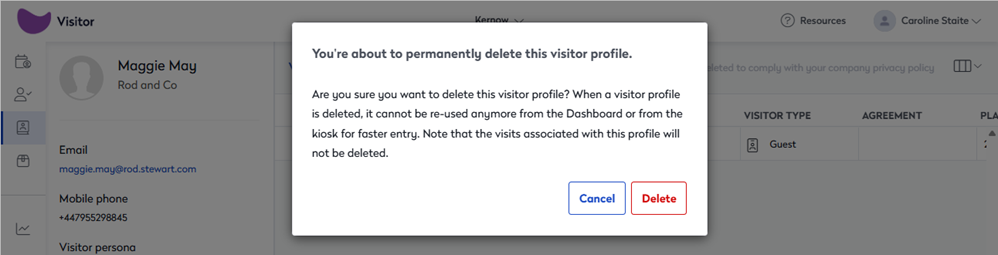
Click Delete profile to permanently remove the visitor's personal information from Eptura Visitor and the Visitor kiosks. Note that any visits associated with the visitor are not deleted.
A warning message is displayed - click Delete to continue, or Cancel to return to the Visit History without deleting the visitor's details.
Edit Profile
Click Edit Profile to make changes or add information to the visitor's profile. Click Save when done.

Delete visitor profiles from the Visitor address book
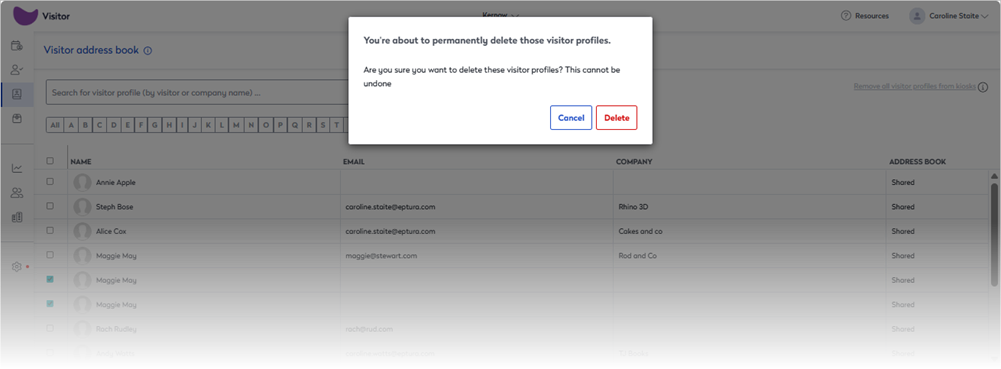
Up to 100 visitor profiles can be selected at a time for deletion from the Visitor Address Book. When at least one visitor profile is selected, the number selected and an option to delete them is shown under the list. Only users with the required permissions to delete visitor profiles will see the 'delete' option
To delete visitor profiles, open the Visitor Address book and either select the individual visitors to delete or click the box at the top of the list to select all. When the visitor profiles are selected, scroll to the bottom and click Delete.

A reminder that deleting visitor profiles is permanent and cannot be undone is shown. To confirm the deletion, click Delete.
Delete individual visitor profiles from the Visitor Address book
To delete an individual visitor profile, click the visitor's entry in the Visitor Address book to open the visitor's profile in the side panel. Click Delete profile at the bottom.
Delete visitor data from the kiosks
Depending on your settings, the kiosk might store visitor data - this facilitates returning visitors who are not pre-registered. Learn more: Visitor identification
Visitor data stored on the kiosk can be removed via the Visitor Address book.
Open the Visitor Address Book and click the Remove all visitor profiles from kiosks link at the top right.

Click Remove to continue.
Visitor profiles are removed from the kiosk but might still be stored in the Visitor Address book.