
Locations and Buildings
About locations and buildings
In a nutshell, a ‘location’ is a site within your organization that has one or more entrances used by visitors and employees to access the workplace, while a ‘building’ (or 'estate') is simply a group of locations. Read on to learn more about locations and the benefits of creating buildings.
 |
Eptura platform services If your organization uses Eptura's platform services, 'Buildings' are referred to as 'Estates'. Where 'buildings' are referenced in this article, Platform services customers will see 'estates' in the Visitor application. Learn more
|
Locations:
Each location has its own settings, rules, and users, etc., and can manage visits from multiple entry points and Visitor kiosks. A location can provide the following:
- Visitor logbook: Manage all visits for a location from a single logbook.
- Personalized welcome: Greet your guests in their own language; the Visitor Kiosk app supports a large range of different languages. Contact Support to add more languages.
- Emergency management: Account for visitors and employees during an emergency.
- Customized usage rights: Each user can have different usage rights for different locations. For example, a user might be registered as an administrator in one location and as a standard user in another.
- Reporting: Compare visit data across your locations and aggregate it to analyze global statistics.
You can have as many locations for your organization as you need. Contact Support if you would like a new location created. New locations can be created using your existing settings, which can provide:
- Consistent branding - When we add new locations for your organization, we can copy your check-in process and settings to them so each location reflects your brand.
Buildings (or Estates):
- Visitor logbook for multiple locations: Manage visits for multiple locations from a single logbook; view all expected, checked-in, and signed-out visitors across your grouped locations.
- Emergency list: Generate an emergency list for all the locations added to your building.
- Export all visit data: Export all visit data for all the locations added to your building.
The Location Overview module
The Locations Overview module contains two dashboards - an overview of your locations and buildings, and a real-time dashboard where you can monitor the most recent activity happening across multiple locations or tenants from one single page.
- Overview dashboard: View the number of expected visitors in each location, generate emergency lists, and create and edit Buildings.
- Real-time dashboard: Dynamic real-time information about the most recent visitor activity across all the locations you have access to.
Learn more: Locations Overview ↗️
Locations
Each location has its own settings, rules, and users, and can manage visits from multiple entry points and Visitor kiosks.
New locations cannot be created directly in Eptura Visitor. Contact Support if you need a new location created.
Adding a new Location
You can have as many locations for your organization as you need. Contact Support if you would like a new location created.
New locations can be created using your existing settings, such as:
- General visit settings: Invitation email, SMS/text reminder; the default visit duration; company preferences regarding check-in notification, check-out notification, check-out reminder, and auto-check-out.
- Most kiosk settings: Branding, custom screens, agreements / non-disclosure agreements (NDA), languages. Custom texts and the (local) printer settings cannot be copied.
- Custom fields: You can copy your custom fields to a new location.
The above settings can only be copied in bulk when the new location is created, not afterward.
Switch Location
If you have multiple locations, switch between them from the drop-down list at the top of the Eptura Visitor window.

Learn more:
Buildings
Create a building to group multiple locations together. This allows you to manage all visits for the grouped locations from one single logbook, generate an emergency list, and export all visit data for multiple locations.
|
Eptura platform services If your organization uses Eptura's platform services, 'Buildings' are referred to as 'Estates'. Where 'buildings' are referenced in this article, Platform services customers will see 'estates' in the Visitor application. Learn more
|
Create a Building and add locations
- Select Locations overview from the icon menu on the left, and click New building to start creating a new building.

- Enter a name for the building and select a location from the drop-down list.
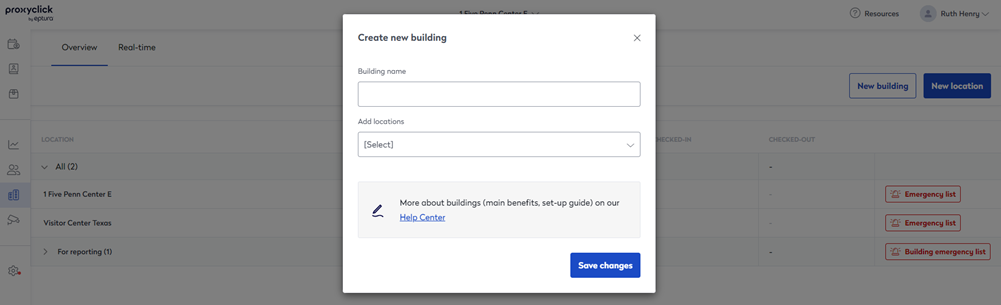
- Continue adding locations as required, and click Save changes when done.
Add or remove locations from an existing building
To add additional locations to an existing building or remove locations:
- Select Locations Overview from the left icon menu and hover over the Building to display the Edit icon.
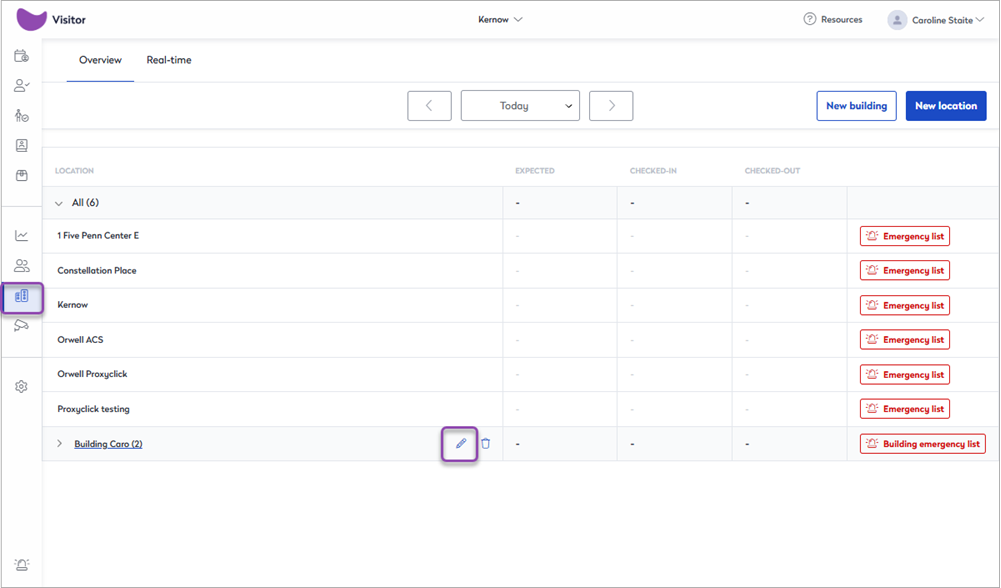
- Click the Edit icon to open the Edit building dialog box.

- Add locations: Select the location to add from the Add locations drop-down list and click Save changes.
- Remove locations: Click Remove for the location you want to remove.
Delete a building
To delete a building:
- Select Locations Overview from the left icon menu and hover over the Building to display the Bin icon.

- Click the Bin icon to delete the building, and click Delete to confirm. This only deletes the building, it does not remove any locations.

Export all visits for a building from the Visitor logbook
You can export all visits for all locations added to a building via the Export visits option from any location's Visitor logbook. You can export up to 180 days of visits within any given time frame.
- Open a Visitor logbook for any location and click the Export all visits icon from the icon bar across the top of the visitor logbook.

- From the 'Export all visits' dialog box, select the From and To dates you want to export, and select the building from the Building or location drop-down list.

- Click Export to export visits from all locations in the building.
You can continue working while the export is running. When ready, a secure link to the exported file is sent via email.
Learn more: Visitor logbook overview ↗️