
Personal Assistants
About Personal Assistants
Personal Assistants can receive check-in/check-out visitor notifications for visits that a colleague hosts.
From your user profile, you can assign a personal assistant to receive visitor management notifications for visits that you host, or set yourself up as a personal assistant for someone else. If you select a personal assistant for yourself, or set yourself up as a personal assistant for a colleague, your name will appear in the corresponding field in their user profile - only one of the two users needs to define the personal assistant.
A Personal Assistant cannot create visits for the assigned colleague unless they are a member of a user group that provides this permission - usually the 'Assistants' user group. However, providing a user with permission to create visits for others, allows them to assign any colleague in the location as a host of a visit. Learn more (admins): User groups and rights
How to assign Personal Assistants
Follow the steps to select your personal assistant or set the colleague that you are a personal assistant for.
- Select your name in the top right of Eptura Visitor and click Manage Profile from the menu.

- To set your personal assistant, start typing their name in the My Personal Assistant box and select it when it appears.
- To set the colleague that you are a personal assistant for, start typing their name in the Personal Assistant to box and it when it appears.
- Click Save changes when done.
Only colleagues who have an Eptura Visitor account are available to select. Contact your administrator to request an account for a colleague if they are not listed.
Host: Manage who receives notifications about your visits
As a host with a personal assistant, you might prefer not to receive check-in and check-out notifications for your visitors, and have them sent only to your personal assistant.
When you have deactivated email notifications, your personal assistant can still add you as a recipient to specific visits so you are notified when your guests check-in or check-out. This is useful if your assistant will be out of the office at the time and unable to meet and greet your guests.
To stop receiving check-in and check-out notifications and have them sent only to your personal assistant, follow the steps to disable the 'notify me if I am the host' options in your user profile.
- Select your name in the top right of Eptura Visitor and click Manage Profile from the menu to open your user profile.
- Select Visitor Management Notifications from the menu on the left.
- To stop receiving notifications yourself for visits that you host, disable 'I am the host' for the notifications that you do not want to receive. The personal assistant assigned in your profile will continue to receive them.
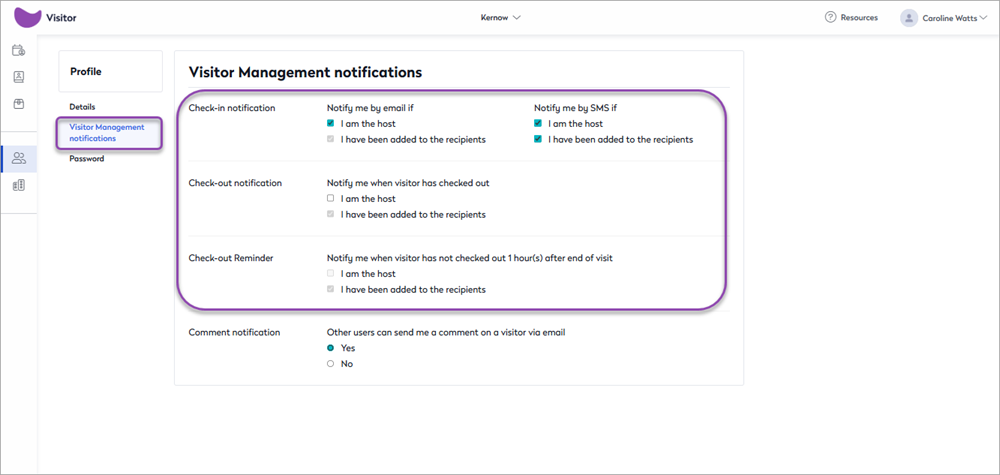
Personal Assistant: Manage notifications
When you are assigned as a personal assistant for a colleague, you will receive check-in and check-out notifications for the visits they host. You can enable or disable these notifications in your user profile.
- Select your name in the top right of Eptura Visitor and click Manage Profile from the menu to open your user profile.
- Select Visitor Management Notifications from the menu on the left.
- Enable/disable the Notify me if.... I am the personal assistant of the host options for check-in and check-out notifications as required.

Override deactivated host notifications or send notifications to someone else
To ensure the host receives check-in and check-out notifications for a visit, even when they have deactivated their notifications, you can add them directly to the notification list on the new visit form. This is useful if you will be out of the office at the time of the visit and unable to meet and greet the guests. You can add other recipients here, too.
- Create a new visit and click Customize notifications under the Host field.

- Add the host and/or other colleagues to the recipient lists for the notifications you want them to receive for the visit.

Assistant: Create visits for someone else
To create visits for others, you must be a member of the Assistants user group, or another user group that has enabled the permission to create visits for others. Users with this permission applied, can set any user in the location as the host of a visit.
Your Administrator can add users to user groups. Learn more (admins): User groups and rights
To create a visit on behalf of someone else, you simply change the Host name on the new visit form to their name. If you are not a member of the Assistants user group (or another group that allows creating visits for someone else), a message is displayed when you attempt to save the visit, and the visit is not created.
Learn more: Create a visit for someone else