
Printing via Brother SDK
If your printer does not support Apple AirPrint or your Eptura Visitor Kiosk is running on an Android device, you can print to Brother supported printers via the Brother Software Development Kit (SDK).
A list of supported printers is available at Brother: https://support.brother.com/g/s/es/h...d-printer.html
Print via Brother SDK - iPad kiosk
Configure your iPad Visitor kiosk to print badges on a Brother supported printer over Wi-Fi or Bluetooth.

Wi-Fi
To print badges from your Visitor kiosk via Wi-Fi - if both the iPad and the printer are on the same network, enter the printer's IP address in Eptura Visitor badge and printer settings, and enable Brother SDK on the iPad.
Make sure you have the printer's IP address and follow the steps below. Learn more: How to find the IP address of a Brother printer
Eptura Visitor web app:
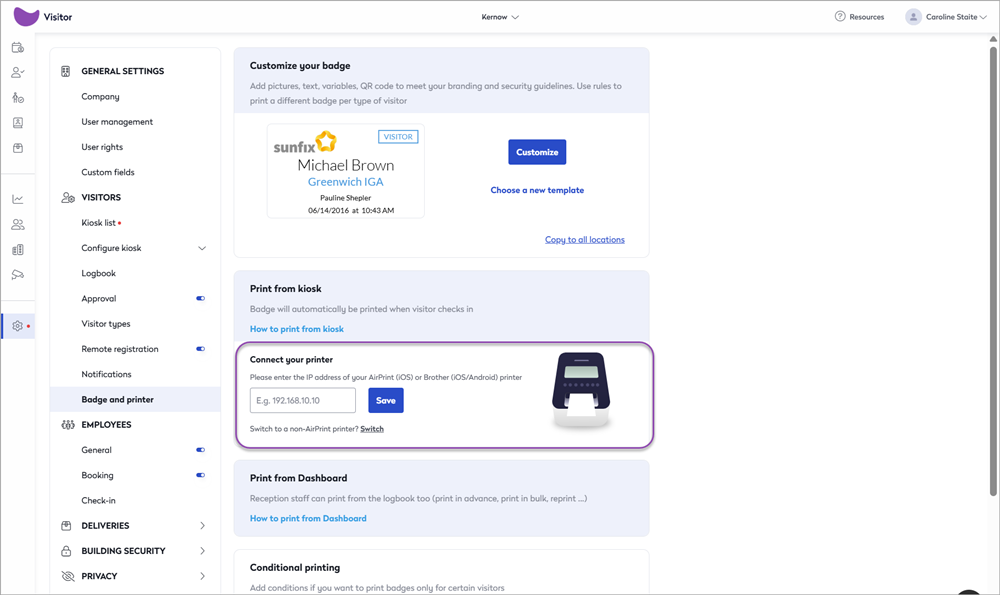
- In the Eptura Visitor web app, navigate to Settings > Visitors > Badge and printer.
- Enter the printer's IP address in the Connect your printer field and click Save.
iPad settings:
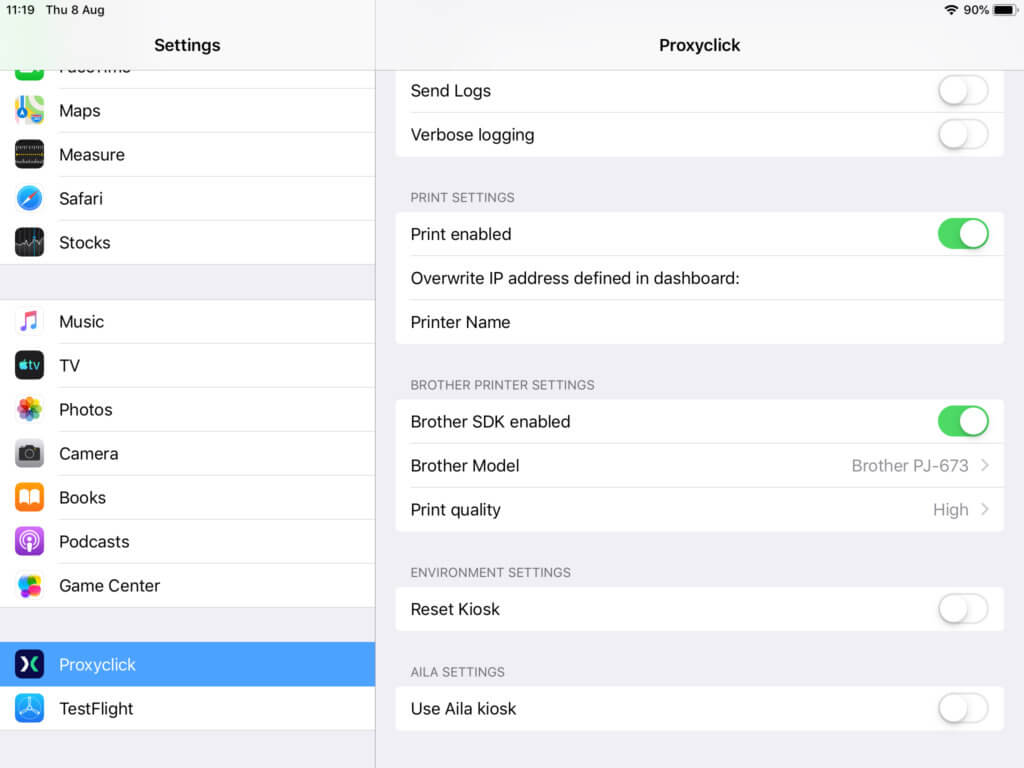
- Open the iPad settings and navigate to Proxyclick.
- Toggle the Brother SDK enabled switch ON.
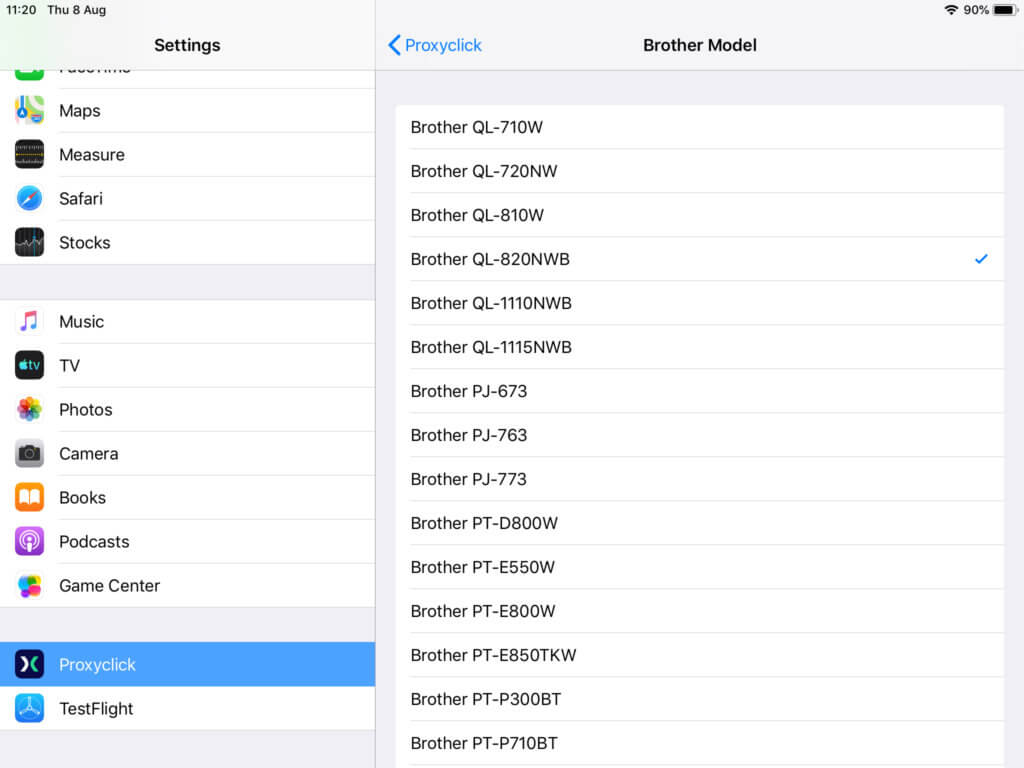
- Tap Brother Model and select your Brother printer from the list of models.
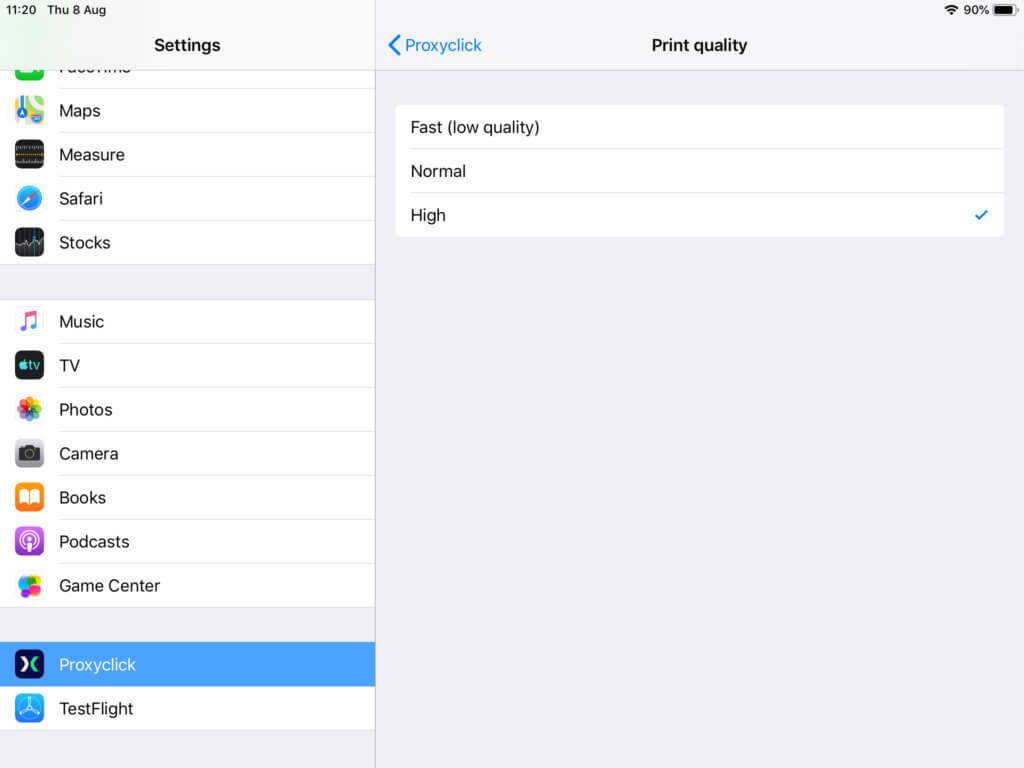
- Optionally, set the print quality - Fast (low quality), Normal, or High.
Bluetooth
Printing over Bluetooth is useful in lobbies without Wi-Fi, or if your iPad or printer cannot connect to the Wi-Fi network.
To print badges from your Visitor kiosk via Bluetooth, as well as pairing the iPad with the printer, an IP address must exist in Eptura Visitor badge and printer settings - the IP address does not need to be a valid address; this simply informs Eptura Visitor to print badges.
An iPad can only be 'paired' with one printer at a time via Bluetooth.
Eptura Visitor web app:
- In the Eptura Visitor web app, navigate to Settings > Visitors > Badge and printer.
- Enter any IP address in the Connect your printer field and click Save. The IP address does not need to be a valid address.
iPad settings:
Before pairing, ensure Bluetooth is enabled on both the iPad and the printer.
- Open the iPad Settings and tap Bluetooth.
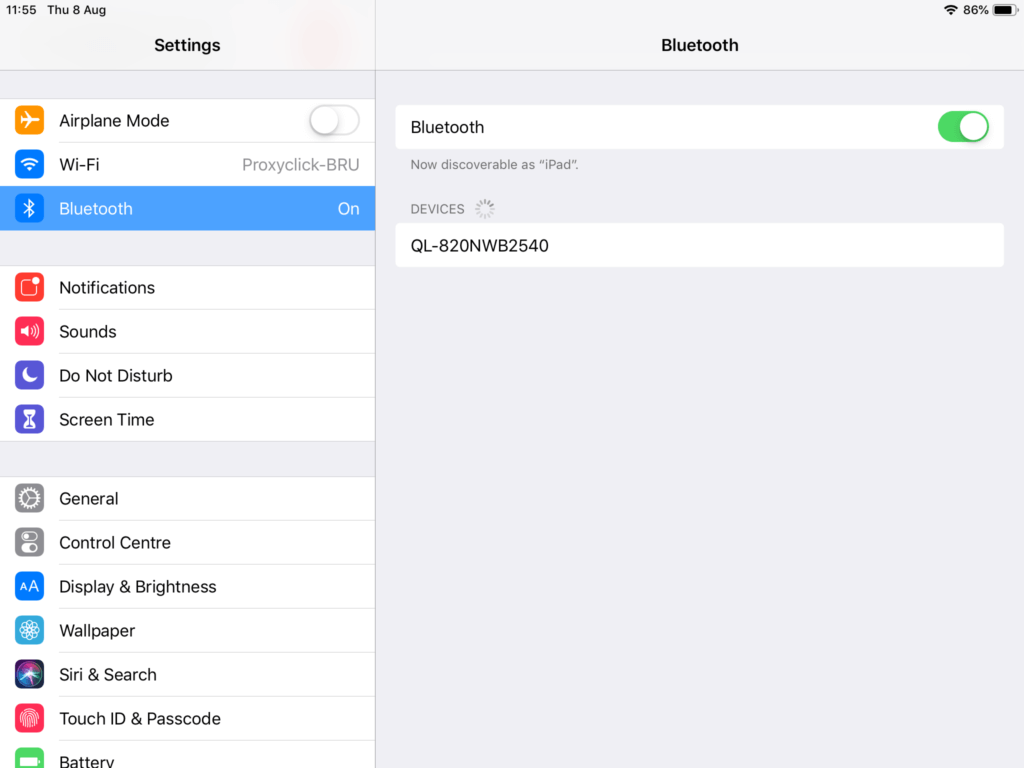
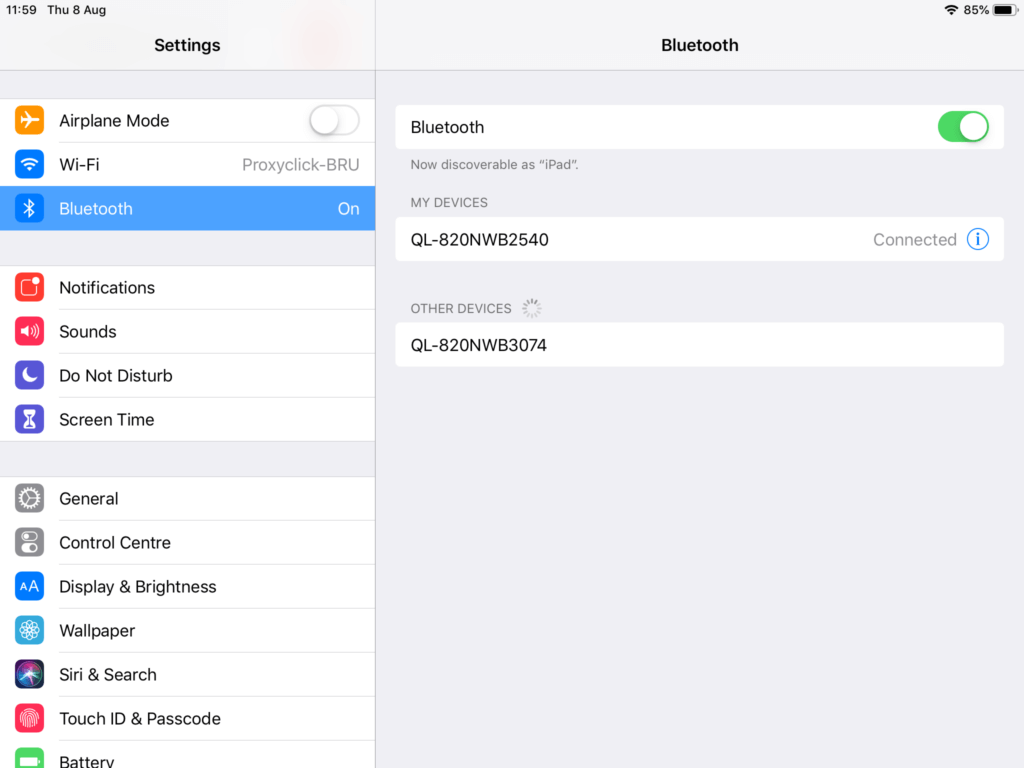
- Tap the printer from the list of Devices and wait for the prompt to pair them together.
- When paired, the status for the device shows 'Connected'.
- In the iPad settings, navigate to Proxyclick and toggle the Brother SDK enabled switch ON.
You do not need to select the printer model when printing via Bluetooth.
Print via Brother SDK - Android kiosk
To print badges from your Android Visitor kiosk via Wi-Fi - if both the Android device and the printer are on the same network, enter the printer's IP address in Eptura Visitor badge and printer settings, and enable Brother SDK on the Android device.
Make sure you have the printer's IP address and follow the steps below. Learn more: How to find the IP address of a Brother printer
Eptura Visitor web app:
- In the Eptura Visitor web app, navigate to Settings > Visitors > Badge and printer.
- Enter the printer's IP address in the Connect your printer field and click Save.
Android settings:
- Long-press the company logo at the top right of the Visitor kiosk welcome screen to open the Admin login screen.

- Enter the Admin password - this is the first 5 digits of the kiosk activation code. Learn more: Activate the kiosk
- In the Android Settings, toggle the Brother SDK enabled switch ON.

- Tap Brother Model and select your Brother printer from the list of models.
- Optionally, tap Print Quality to set either Fast (low), Normal, or High for the print output.