
Printing via AirPrint
If you have an iPad Visitor kiosk and an AirPrint compatible printer on the same network, then we recommend printing your badges via Apple AirPrint.
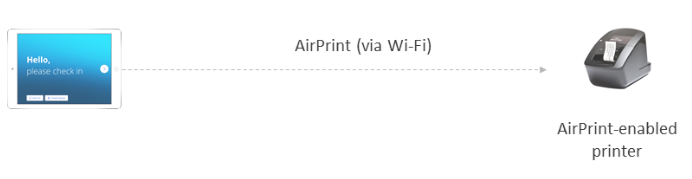
Test your AirPrint connection: Before you begin, make sure the iPad can connect to and print from the printer outside the Eptura Visitor environment. The easiest way to do this is to open any web page in Safari - tap Share, and then tap Print. If your printer is listed under Select Printer, then AirPrint is working.
Print via Apple AirPrint - iPad kiosk
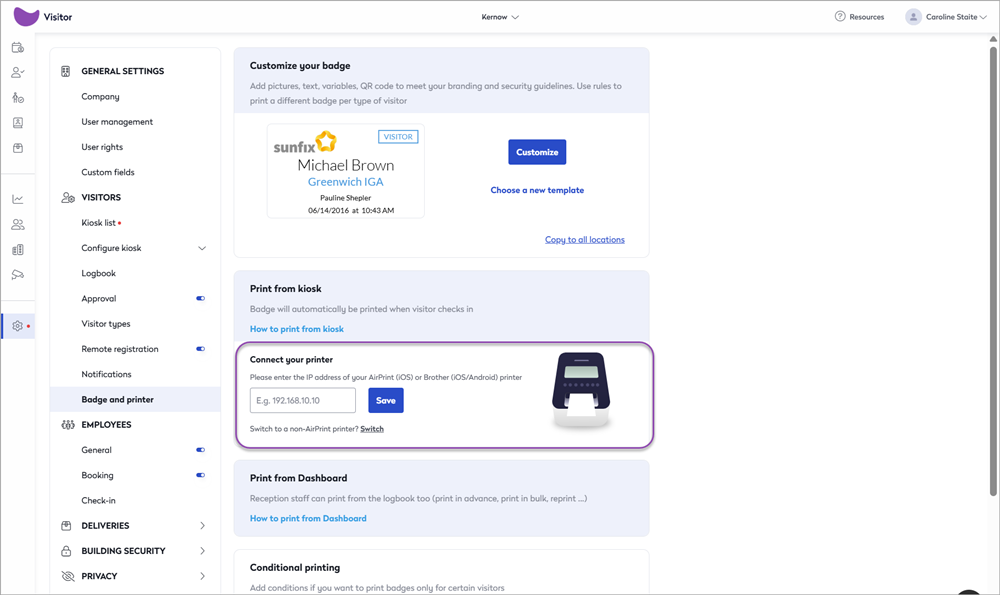
To print badges from your Visitor kiosk via Airprint - if both the iPad and the printer are on the same network, all you need to do is enter the printer's IP address in Eptura Visitor badge and printer settings.
Make sure you have the printer's IP address and follow the steps below. Learn more: How to find the IP address of a Brother printer
- In the Eptura Visitor web app, navigate to Settings > Visitors > Badge and printer.
- Enter the printer's IP address in the Connect your printer field and click Save.
- Restart the Visitor kiosk.
How to find the IP address of a Brother printer
For Brother printers, you can usually find the IP address of your printer by performing the following steps:
- Press the Menu and down-arrow buttons to open the WLAN settings.
- Press the Up arrow to navigate to WLAN Status and press OK.
- Select Infrastructure Mode and press OK.
- The IP address is listed (for example, 123.123.1234.123).