
Real-time dashboard
About the the Real-time dashboard
The Real-time dashboard shows live information about the most recent visitor activity across all locations you have access to. The dashboard automatically updates as visitors check in and out, and when comments are added to visits.
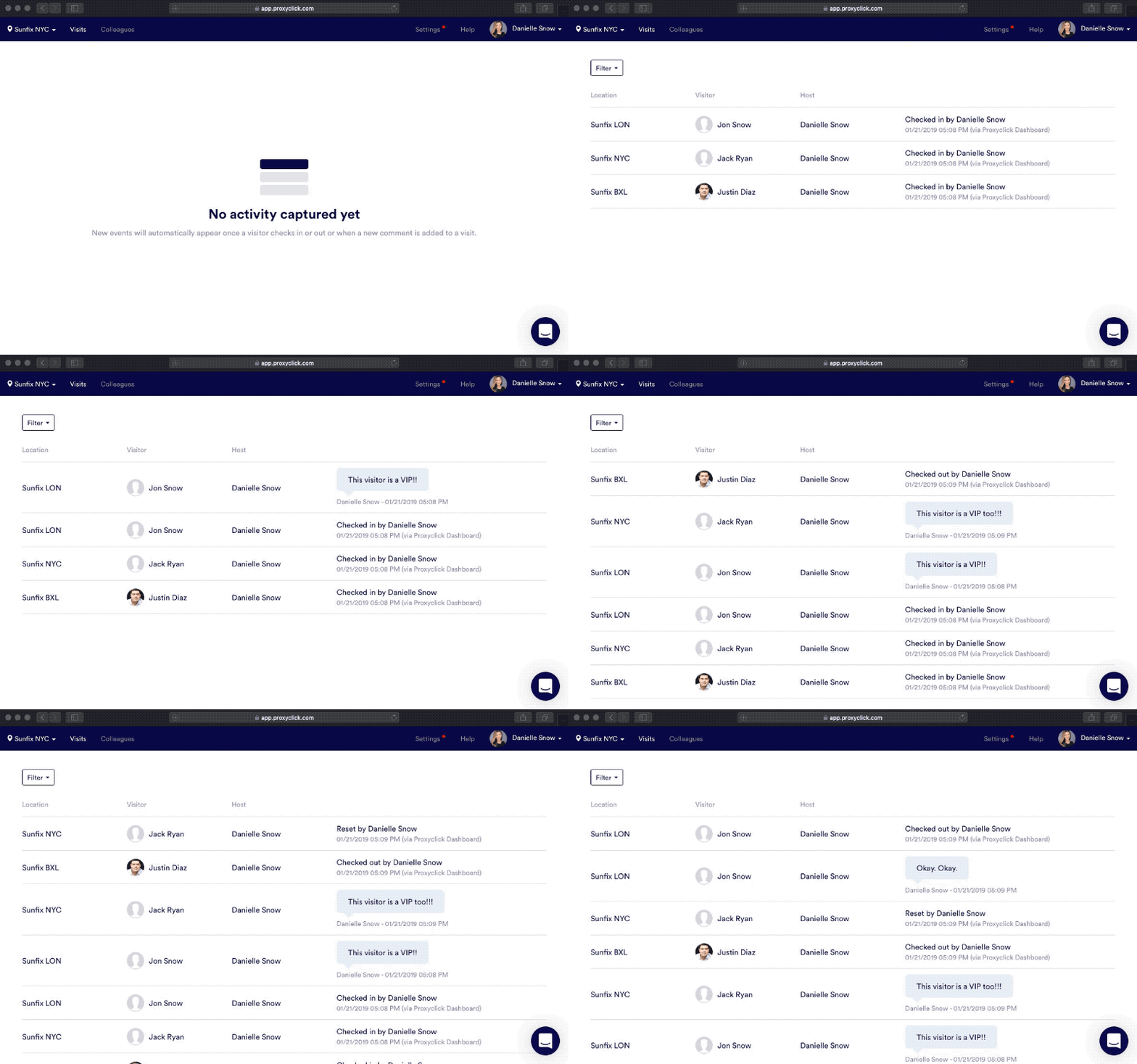
This dynamic dashboard only shows events received while the dashboard is open; up to 100 events are stored. If it is closed and reopened, the dashboard is refreshed and remains empty until the next event occurs.
The Real-time-dashboard is useful for anyone who needs to watch live site-entry activity across multiple locations, for example:
- Central administrators and security teams who need a snapshot of real-time site-entry activity across all locations.
- Front-of-house teams can keep visitors across multiple locations informed with details about their visits and hosts.
Use the building's Visitor logbook for a more comprehensive view of past and future visits across multiple locations, and to manage visit and visitor status. Learn more: Visitor logbook overview
Start the Real-time dashboard
To start the Real-time dashboard, select Locations Overview from the icon menu on the left, and select the Real-time tab.
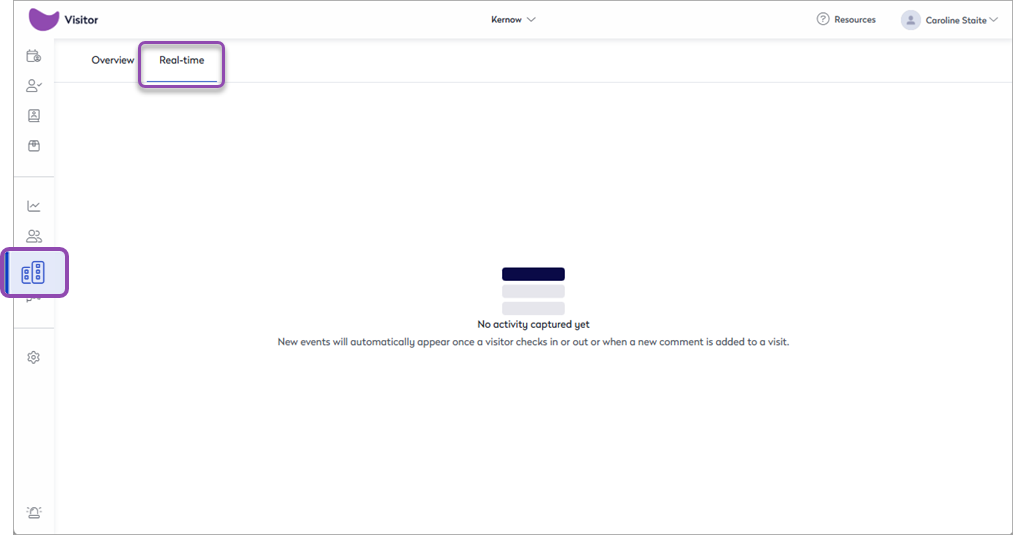
The dashboard will now start to show events as they occur in all the locations that you have appropriate permissions to. The following activity is shown:
- Check-in and check-out activity
- Comments added to visits
- Checked-in visits that are reset to Expected
- Not shown: New visits set as Expected are not shown.
Who can see the visit activity?
To see the visit activity, you must be a member of a user group that has See all visitors for the day enabled. By default, this setting is enabled for the Reception and Security user groups.
Comments added to visits are visible to members of the Reception user group for each location.
Admins can manage user group membership from Settings > General Settings > User rights. Learn more: User groups and rights
Using the Real-time dashboard
For each activity, the dashboard shows the location, the names of the visitor and host, and details of the activity - checked in by / checked out by, etc.

If you attempt to navigate away from the dashboard, to the Visitor logbook for example, a warning is shown advising that the dashboard will be reset if you leave the page.

To view more details of a visit or change a visitor's status without leaving the page, click the visit directly on the dashboard to open the Visitor logbook in a new browser tab with the visit details open.
