
Import People Data
Eptura - Directory
Level: Administrator
Your Administrator can upload your people data into the directory.
Step 1. Open the Import People Data form
- From the Home screen, click the Directory tool and the Directory screen displays.
- From the People tab, click the Add person drop-down.

- Select the Import people data and the People data import panel displays.
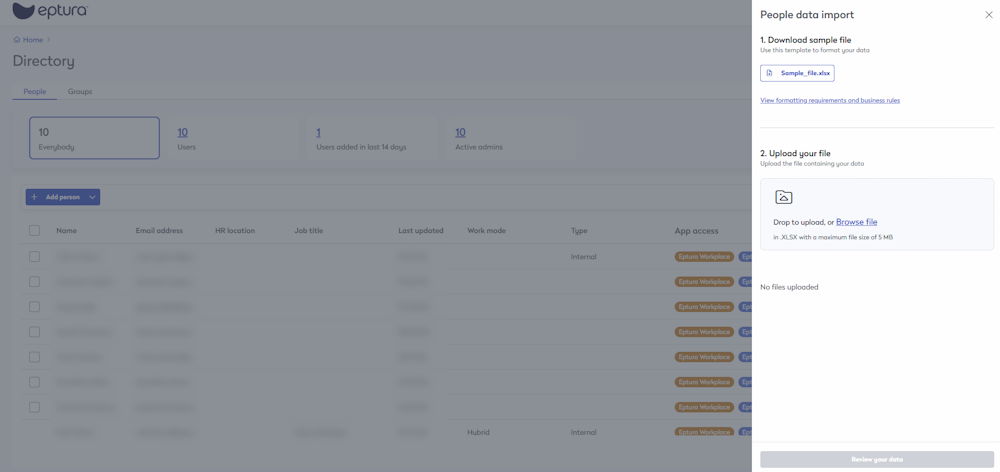
Step 2. Download and prepare the file
- Click the sample_file.xlsx button and the file is downloaded.
- Navigate to the downloads folder and open the file.
- Complete the data in the spreadsheet and the People Data Requirements and Business Rules for the Standard Fields, Custom Fields, and App Access are listed below.

Note there is a panel that contains the fields and the descriptions; click the View formatting requirements and business rules link.

Step 3. Upload your file
- In the Upload your file area, either: drag and drop the file onto the area OR click the Browse file link to browse to the file and select it. Then the file uploads.
- Click the Review your data button.

Data Error
If your data has errors, complete the following:
- Click the Download error list button and the .XLSX file will download.
- When you open the file, it will contain an error description and you can correct the error(s) in the original file.
- Click the < icon to return to the People data import.
- In the Upload file, click the Delete
 icon to remove the file.
 - The Confirm deletion dialog displays, click the Yes, delete button.
- In the Upload your file area, either: drag and drop the file onto the area OR click the Browse file link to browse to the file and select it. Then the file uploads.
- Repeat the review procedure.

- After you have reviewed and corrected any data errors, click the Complete Import button and the file is uploaded.
People Data Requirements and Business Rules
Standard Fields
| Field Name | Required Field | Business Rules |
|---|---|---|
| First Name | Yes |
Accepts any value Max 40 char |
| Middle Name | No |
Accepts any value Max 40 char |
| Last Name | Yes |
Accepts any value Max 40 char |
| Preferred Name | No |
By default, Preferred name = First Name Accepts any value Max 40 char |
| Yes |
Format: xxx@yyy.zzz Must be unique If you need to change the email address, you will need to delete the user (this causes the removal of the historical records for the user), and then you can add a new person. If you don't delete the user, then you will have duplicate records for the person. For example:
See the end of the table for details about the Delete flag. |
|
| Mobile Number | No |
Numeric values Min 4 digits Max 17 digits Space not allowed |
| Phone Number | No |
Numeric values Min 4 digits Max 17 digits Space is not allowed |
| Extension | No |
Numeric values Min 1 digit Max 4 digits Space is not allowed |
| Person Type | No | From the drop-down, select either Internal, Partner accounts, Strategic Decision Maker, or Support, |
| Person finder opt out | No |
From the drop-down, select either No or Yes. Default = No |
| Special requirements | No |
From the drop-down, select either No or Yes. Default = No |
| Is form user | Yes |
From the drop-down, select either No or Yes. Changing the user's authentication method, SSO/Form, will impact their login experience. |
| Comments | No | Accepts any value |
| Employee ID | No |
Accepts any value Special characters not allowed |
| Job title | No |
Accepts any value Special characters allowed |
| Department | No | Values provided must exactly match Department preconfigured in the system (Case insensitive) |
| Work Mode | No |
From the drop-down, select either In-office, Hybrid or Full-time Remote. Default = None |
| Manager | No |
Format: xxx@yyy.zzz Email provided must exactly match in the person records created in the system |
| HR Location | No | Accepts any value |
| Device login name | No | Accepts any value |
| Life Safety Role | No |
From the drop-down, select either Fire Warden, First Aid Officer, or CPR Certified. Default = None |
| Preferred work schedule | No |
Default = None Data format: *{Day of the week (Case insensitive)}~{Start hour in HH:00 format}~{End hour in HH:00 format}* Sample data: *Saturday~15:00~19:00*sunday~15:00~19:00*Monday~09:00~05:00*TUESDAY~09:00~05:00* |
|
Eptura Workplace |
No |
From the drop-down, select either No or Yes. Default = None |
| Eptura Asset | No |
From the drop-down, select either No or Yes. Default = None |
| Eptura Engage | No |
From the drop-down, select either No or Yes. Default = None |
| Eptura Visitor | No |
From the drop-down, select either No or Yes. Default = None |
| Envision | No |
From the drop-down, select either No or Yes. Default = None |
| Devicehub | No |
From the drop-down, select either No or Yes. Default = None |
| Delete | No |
From the drop-down, select either No or Yes. Default = No If the value is set to "Yes", the existing person's records will be deleted from the system. |
Custom Fields
Inputs for the custom fields are optional.
Your Administrator will need to create the Custom Fields, before the data can be imported in.