
Add, Edit, or Delete Space Type
Level: Administrator
The space types list contains a default set of space types. If your organization needs more, then your Administrator can add these space types.
- Add Space Type
- Edit Space Type
- Delete Space Type
- Space Type Fields
Add Space Type
- From the Home screen, click Space Types.
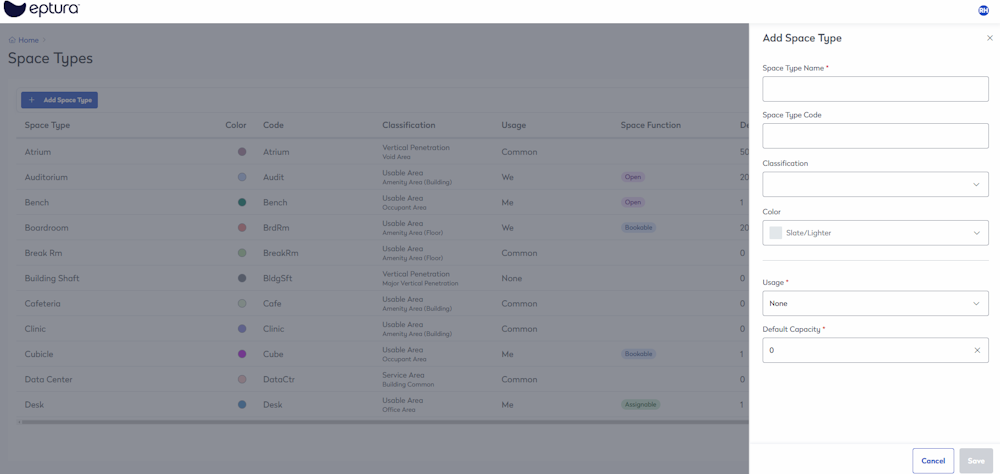
- Click the + Add Space Type button and the Add Space Type form displays.
- Complete the fields, and see the table below for the Space Type Fields.
- Click the Save button.
Edit Space Type
- For the space type you want to edit, click the space type's name and the Edit Space Type form displays.

- Update the fields, and see the table below for the Space Type Fields.
- Click the Save button.
Delete Space Type
- For the space type you want to delete, click the space type's name and the Edit Space Type form displays.
- Click the Delete button. The message displays, "Delete this space type? This action cannot be undone. Do you want to continue?"
- Click the Delete button.
Space Type Fields
This describes the fields in the form.
| Fields | Description |
|---|---|
|
Space Type Name |
Enter the name of the space type. |
|
Space Type Code |
Enter the code for the space type. |
|
Classification |
Select the classification from the following:
Learn more about the classifications and subclassifications, in Space Types Overview. |
|
Color |
|
|
Usage |
Select the usage from:
|
|
Default Capacity |
Enter the capacity of the space type. |
|
Default Space Function
|
Select the space function from:
|