
Floor Plan Import Log
The Floor Plan Import Log lets you see all imports and you easily download the import or navigate to the active floor plan that is used in the Spaces Floor Plan Viewer
- From the Home screen, click Portfolio Manager and the Portfolio Manager screen displays.
- Click the Tools menu and then select Floorplan import log.
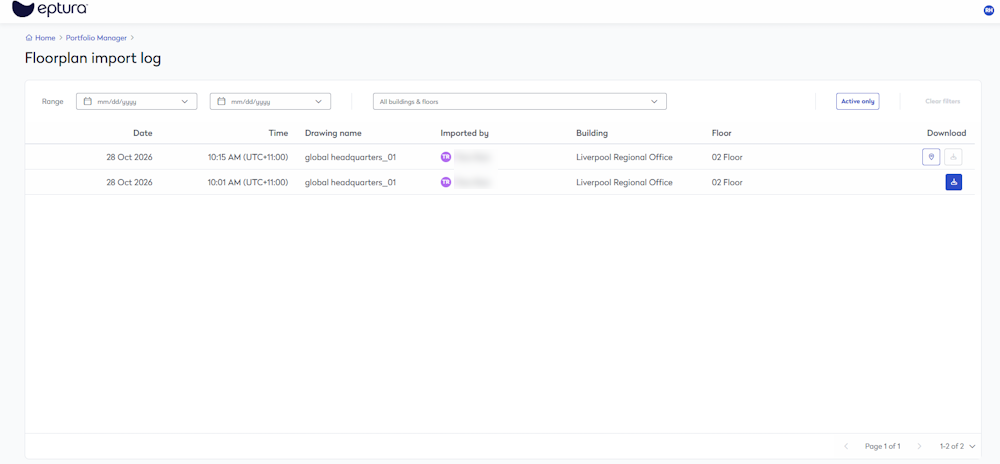
Filter
The following can be used to filter the grid:
- Range - Select the from date and the to date
- Buildings and Floors - From the drop-down, select the building and floors.
- Active - Click the Active only button to display the active floor plans and hide all the inactive floor plans.
If you need to reset the filters, click the Clear Filter button.
Import Log Grid
The floor plan imports are listed in the gird.
The active floor plans, will let you navigate to the Spaces Floor Plan Viewer. Click the Location  icon and this will take you to the Spaces Floor Plan Viewer.
For any of the imports, you can click the Download  icon and the floor plan downloads.