
Add or Edit a Person
Eptura - Directory
Level: Administrator
Your users can be managed using SCIM and the groups can also be managed in SCIM and this will help you control who has access to the apps. Learn more Eptura SCIM and SCIM Provisioning FAQs.
When you need to create a manual person, with a Person Type, such as a Contractor, Customer, Vendor, or Visitor, then your Administrator can quickly complete this. After the person is created, then their App Access can be granted at the individual level or the group level.
Add a Person
- From the Home screen, click the Directory tool and the Directory screen displays.
- From the People tab, click the Add Person button and the New person form displays.
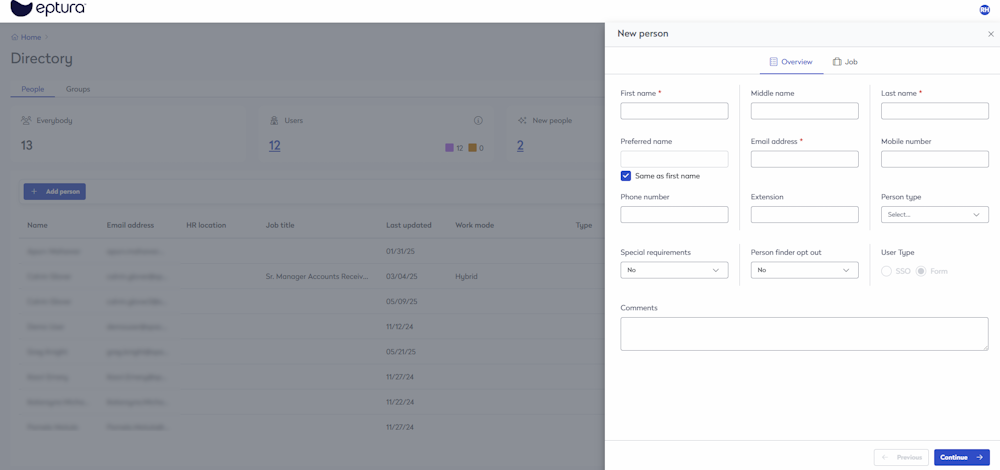
- In the First Name field, enter the person's first name.
- In the Last Name field, enter the person's last name.
- In the Email Address field, enter the person's email address.
- Click the Continue button and the Job tab displays.
- Complete the Job fields; see the Person Fields for a description of each field.
- Click the Continue button and the More tab displays.
- Complete any Custom fields.
- Click the Create Person button. The person is successfully created.
Edit a Person
- From the Home screen, click the Directory tool and the Directory screen displays.
- From the People tab, either browse the list or search for the person.
- Click the person's name and the Profile details display.
- Update the person's profile fields and see the Person Fields to learn about what person fields can be edited.
- Click the Update profile. The person's profile is saved.
Person Fields
Remember, if the person is brought into Eptura using SCIM then some fields will not let you edit, as they will be updated using the SCIM.
The Peson Fields are displays in the following tabs:
- Overview - See the Person Fields article for more details.
- Job - See the Person Fields article for more details.
- More - This tab contains custom fields that you can complete, if needed. Custom fields are set up by your Administrator; learn more in Add, Edit, or Delete Custom Fields.
- App Access - This tab displays after you have manually added a person and when you configure the app access, this will make the person a user in your application.
App Access
When you want to change or set up the access for a user, the App Access tab lets you grant access to the product app and/or make the user an Administrators.
The App Access tab displays after you have added a person.

Update a user to be an Administrator
- If the person is an administrator, then check the Is admin check box. This will make the person an Administrator in the Eptura Home and also this passed to the relevant Eptura products. It is important to note that the user must be an Administrator in the relevant Eptura products as well.
Individual App Access
When you configure the app access, this will make the person a user in your application. In the Individual App Access section, complete the following:
- If you need to revoke access to an app, then click the Revoke access button.
- If you need to grant access to an app, then click the Allow access button.

Email Notification
Welcome emails are sent out to both SSO and Form users.
- Form user's email has the link to set the password and set-up the account. Learn what your Form User will experience in Sign in to Eptura - Authentication Methods
- SSO users only get the Welcome email. Learn what your SSO User will experience in Sign in to Eptura - Authentication Methods
Remember, that Welcome emails for SSO users can be stopped if required, contact Eptura Support to help with this.
Group Level App Access
- If you need group level access, then add this person as a member to a group, see Add, Edit, or Delete a Group.