
Navigate Builidngs, Floors, and Spaces
Buldings
From the Home screen, click Portfolio Manager and the Portfolio Manager screen displays with the Building tab selected by default.
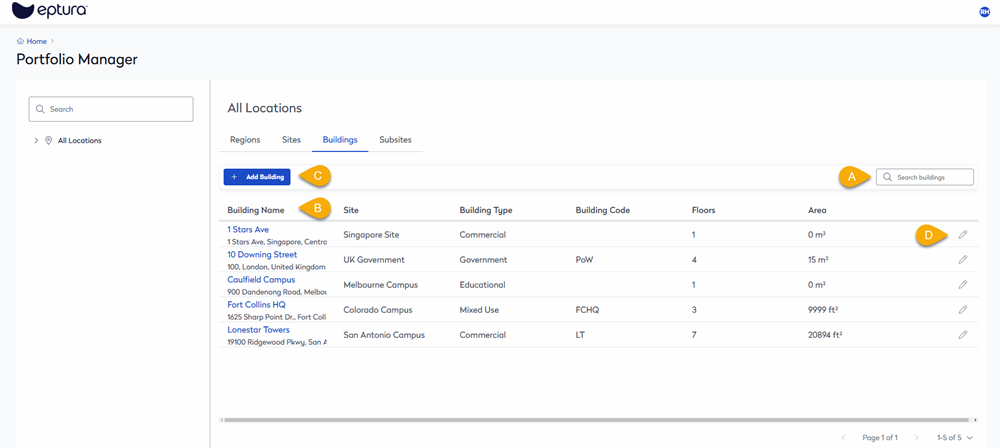
This consists of the following:
- (A) Search buildings
- (B) Buildings Grid - The Building Name heading lets you sort by alphabetical order and reverse.
- (C) Add Building
- (D) Edit Building
Floors
After you select building, then you will find the (A) floors and spaces.

The floors tab consists of the following:
- (B) Search floors
- (C) Floor Grid - The Floor Name heading lets you sort by alphabetical order and reverse.
- (D) Add floor
- (E) Edit floor
The Floor Grid contains:
- Floor Name
- Me Space
- Assigned Me Spaces
- Bookabe Me Spaces
- Me Space Capacity
- Area
Me Space - Spaces designed for individual work, such as workstations or offices. They have the capacity of 1 employee to 1 space.
Spaces
Click the Spaces tab and the spaces within the floor displays.
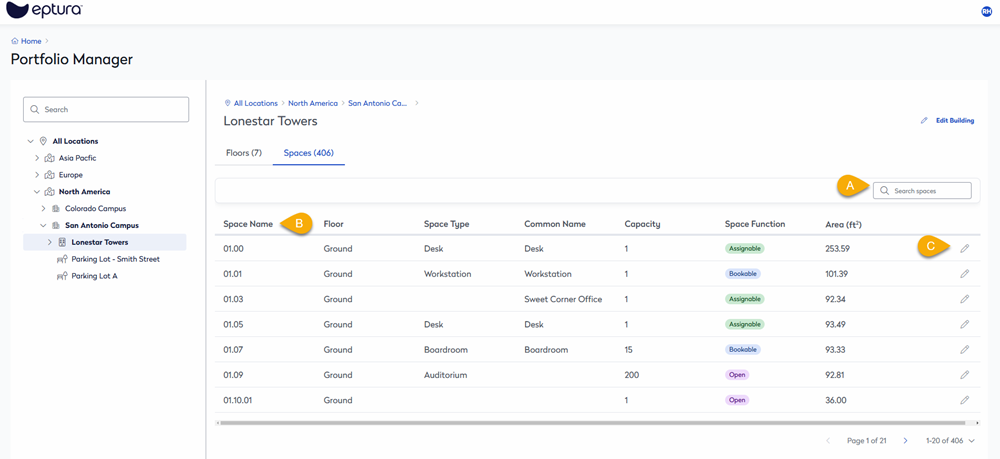
The spaces tab consists of the following:
- (B) Search spaces
- (C) Space Grid - The Space Name heading lets you sort by alphabetical order and reverse.
- (C) Edit space
The Space Grid contains:
- Space Name
- Floor
- Space Type
- Common Name
- Capacity
- Space Function
- Area